
Web & tech · Free
Transfer photos from phone to PC
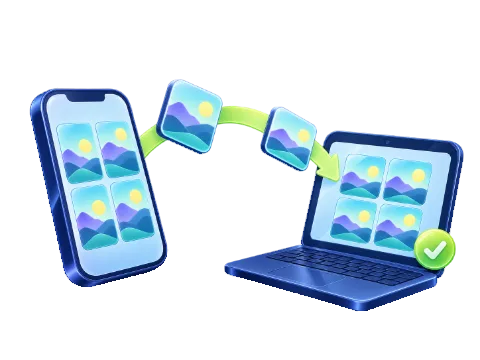
Scan a code with your phone and send photos, videos and files straight to your computer – no cable, no app, no account. The files go directly from device to device, encrypted.
- No account
- Runs on your device
- Phone & desktop
Send photos from your phone
Device to device
Connect in three steps
- Open the camera on your phone and point it at the code.
- Tap the link that pops up. The page opens and connects by itself.
- Choose photos or files. They appear here, ready to save.
Waiting for your phone…
The code works while this page stays open. Anyone with the link can connect, so send it only to yourself.
On a phone? Open this page on your computer and scan its code with this phone – or let a second phone scan the code below.
Connecting to the other device…
This takes a few seconds. Keep the page with the code open on the other device.
Send files
or drop files here
Received
Photos and files from the other device land here.
Directly between your devices. Files never pass through the LoschaZ server; it only passes on two encrypted connection messages it cannot read.
Keep both pages open. A transfer runs while the page is open on both devices. Same Wi-Fi is fastest, but mobile data works too.
How to send photos from your phone to your PC
Open this page on your computer
A QR code appears. It stands for one private pairing and works while the page stays open.
Scan it with your phone
Open the camera app and point it at the code, then tap the link. The page connects both devices on its own, usually within a few seconds.
Choose photos and save them
Pick photos, videos or any files on the phone. They arrive on the computer at full quality; save them one by one or all at once as a ZIP.
Why your photos stay private
Your phone and computer talk to each other over a direct, encrypted connection (WebRTC). To find each other, they leave two short messages on the LoschaZ server. Those messages are encrypted in your browser with a key from the QR code. The key sits after the # in the link, a part browsers never send to a server, so LoschaZ cannot read them. The messages are deleted after ten minutes at the latest.
There is no account, no cloud folder and no upload. Nothing is compressed on the way: a 12 MB photo arrives as the same 12 MB photo.
From the computer to the phone, too
Once connected, both devices can send. Drop files on the computer’s page and they appear on the phone, where you can save them or, on many phones, put them straight into your photos. It also works between two phones or two computers: one shows the code, the other scans it.
Tips for a fast, smooth transfer
- Same Wi-Fi is fastest. The files then stay inside your home network.
- Keep the phone screen on. The page asks your phone to stay awake during a transfer; if it locks anyway, the transfer stops.
- VPN or a strict network? Some VPNs, schools and offices block direct connections. Switch the VPN off or use your phone’s hotspot.
- Photos only in the cloud (Google Photos, OneDrive, iCloud) may need to download to the phone first.
Good to know
There is no relay server, so a transfer needs a direct path between the devices; most home and mobile networks allow it. Files up to 4 GB each can be sent. Received files stay in the open page until you save them or close it.
More ways to send photos
Frequently asked questions
Is Photo Transfer free?
Yes. There is no account, no limit on the number of photos and no paid version. Files up to 4 GB each can be sent.
Do my photos go through your server?
No. Photos and files travel directly from one device to the other over an encrypted connection. The server only passes on two encrypted pairing messages that it cannot read, and deletes them after ten minutes at the latest.
Do the phone and the computer need the same Wi-Fi?
No, but it is faster. Over mobile data the files go through the internet, still directly and encrypted. Some school, office and VPN networks block direct connections; then switch networks or turn the VPN off.
Does it work with iPhone and Android?
Yes. It works in Safari on iPhone and iPad, in Chrome and Samsung Internet on Android, and in Chrome, Edge, Firefox and Safari on the computer. No app is needed.
Are my photos compressed?
No. Every file arrives byte for byte as it left the phone, in full resolution, with its original file name.
Why did the connection fail?
Usually a network blocks direct connections, or one page was closed. Put both devices on the same Wi-Fi, switch off VPN, keep both pages open and scan the code again.

