The short answer
Add the PDFs to PDF Studio, arrange the individual pages, choose “One PDF” and select “Create PDF”. Download the new file and open it to check every page. Set a size limit only when the recipient gives you one.
Open the free toolSee the steps in action
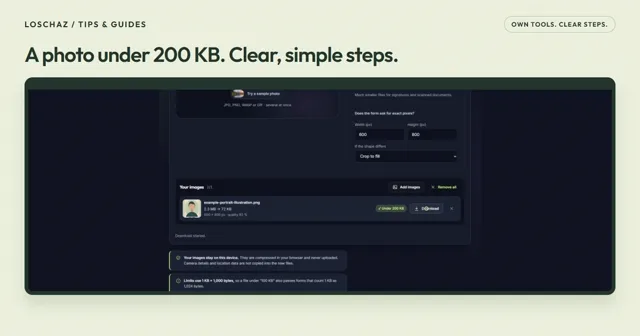
A short recording of our tool, without sound. Turn on captions for the steps in your language. The written instructions below cover the same process.
Open or download the video · 0.3 MB · 25.04 s
Each step is also explained in writing.
- Add the three example PDFs. Every page gets its own preview.
- Move the cover letter before the two resume pages.
- Check the order: cover letter, resume, then certificate.
- Choose one PDF and the 2 MB limit, then create the file.
- Download and open the five-page PDF to check it before sending.
Try the sample fileOur own sample. No personal data.
Decide the page order first
Our example is an application pack: a one-page cover letter, a two-page resume and a two-page certificate. That makes five pages in total. This is an example structure, not a requirement for every employer. If the recipient asks for separate files or a different order, follow those instructions.
Keep the original documents in their own folder. Names such as 01-cover-letter.pdf, 02-resume.pdf and 03-certificate.pdf make them easier to find, but the page board is what controls the final order. You can also add JPG, PNG or WebP images, for example a clear photograph of a paper certificate.
Combine and arrange the pages
Add the documents
Open PDF Studio and choose “Choose files”. Select your PDFs and wait for the page previews. The board shows pages individually, so a two-page file becomes two cards.
Put the pages in reading order
Use each card’s arrows to move it earlier or later, or drag its handle. For our example, keep the cover letter first, both resume pages next and the two certificate pages last. Check the contents, not only the filenames.
Fix sideways or unwanted pages
Rotate a sideways page with “Rotate”. Remove a duplicate or blank page only after confirming it is unnecessary. These edits affect the new PDF, not your originals.
Choose the output and create it
Under “Save as”, keep “One PDF”. Enter a useful filename, such as application-pack.pdf, and select “Create PDF”. Once ready, use “Download PDF” to save the new document.
If the recipient asks for a file under 2 MB
First try “Original quality” if no maximum size is specified. If the upload form gives a 2 MB limit, choose “Under 2 MB” and create the PDF. The tool tries to reduce photos and scanned pages while keeping ordinary text pages selectable.
A target is not a promise that every document can fit. Read the final size and any warning. If the result is still too large, remove unnecessary pages or reduce oversized scans. “If needed, turn text pages into images too” is a further option, but those pages will no longer have selectable or searchable text.
Open the downloaded file, not just the previews
For the five-page example, check that there really are five pages and that the transition from resume to certificate is in the right place. Read small dates and contact details at a comfortable zoom. A certificate that looks acceptable as a thumbnail may still be too soft to read.
If text selection matters, try selecting a line in the downloaded PDF. A scanned page was already an image, and this tool does not add OCR. After you reorder, rotate or remove another page, create the PDF again: an earlier download does not update itself.
When a file cannot be added or the result is unsuitable
A PDF that asks for an opening password must first be opened and saved without that password in an application you are authorized to use. PDF Studio does not ask you to enter passwords. Some PDFs that block copying can only be brought in as images; the tool tells you when this happens.
On a phone, a large batch can exhaust available memory before the stated file limit is reached. Try fewer files at once. Keep digitally signed originals separately: a merged document is a new file, not a substitute for checking the original signature. PDF Studio works in your browser and does not upload your document files.
Questions you might still have
Can I merge Word files directly?
No. Export the Word document to PDF first, then add that PDF. This workspace accepts PDF, JPG, PNG and WebP inputs.
Why did I download a ZIP instead of one PDF?
“One PDF per page (ZIP)” was selected under “Save as”. Switch to “One PDF” and create the output again.
Will all text, forms and signatures work exactly as before?
Do not assume that every interactive feature survives a merge. Check the new file, keep the originals and use the original signed document when its signature needs verification.
Sources & useful details
The screen recordings show LoschaZ tools using sample files created for these guides. They are demonstrations, not tests on every phone or promises of an identical result. Examples are not customer files.