The short answer
Open Image Compressor, add your photo and choose 200 KB. Use JPG unless the form accepts another format. Download the result, check its displayed size and open it once to make sure the important details are still clear.
Open the free toolSee the steps in action
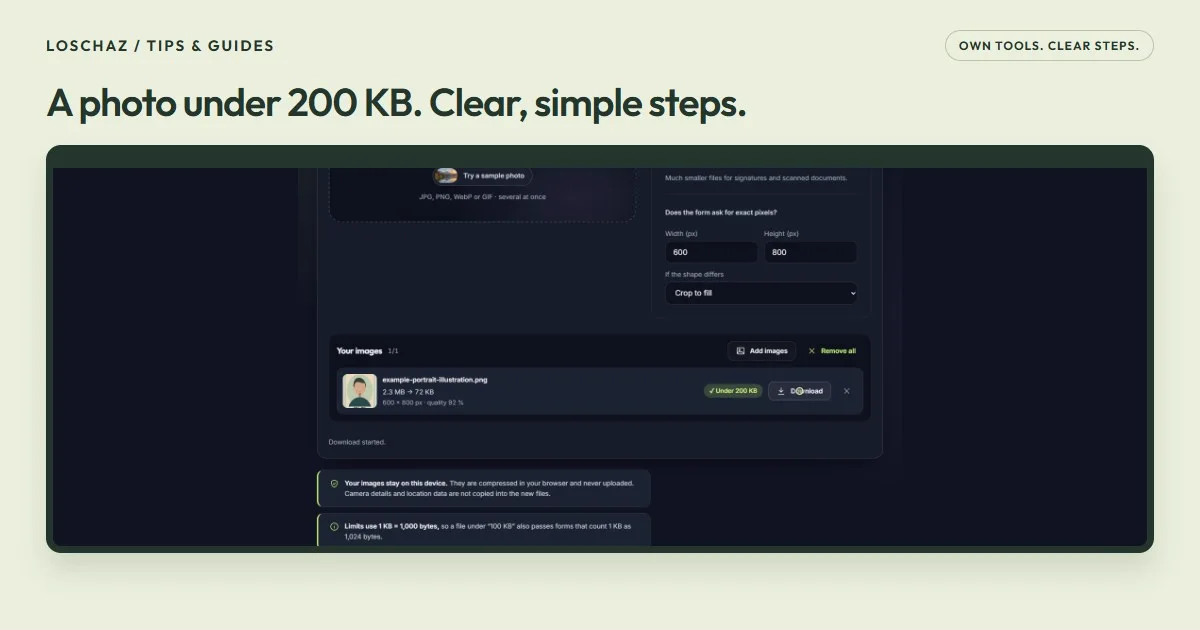
A short recording of our tool, without sound. Turn on captions for the steps in your language. The written instructions below cover the same process.
Open or download the video · 0.2 MB · 24.17 s
Each step is also explained in writing.
- Choose the 200 KB limit and keep JPG selected.
- Set width to 600 and height to 800 only if your form requires them.
- Add the example illustration. The real tool creates a smaller copy.
- Check the displayed file size, pixels and target badge.
- Download the new JPG and check the copy before uploading it.
Try the sample fileOur own sample. No personal data.
Check three things before changing the photo
A file-size limit and a pixel size are different requirements. 200 KB describes how much storage the file takes; 600 × 800 pixels describes its width and height. A form may ask for one, both, or neither. Read its instructions before choosing settings.
For this worked example, imagine a registration form that accepts JPG, allows at most 200 KB and asks for a 600 × 800-pixel portrait. Those are example requirements, not a rule for every application or identity document. Keep your original photo unchanged so you can start again if necessary.
Make the smaller copy in four steps
Add the original
Choose “Choose images” and select the photo. JPG, PNG, WebP and GIF inputs are supported. For a single photo, avoid adding your entire camera roll: one file makes it easier to check the result.
Set the file limit
Select 200 KB under “Size limit” and choose JPG under “Format”. The tool adjusts the quality for you. It uses decimal KB, so the target is 200,000 bytes.
Add pixels only when required
For our example, open “Does the form ask for exact pixels?” and enter width 600 and height 800. If the form only mentions 200 KB, leave these fields empty and let the tool find a suitable size.
Download and inspect
When the result is ready, read the file size and pixel dimensions shown on its card. Select “Download”, then open the downloaded copy rather than judging only the small preview.
Keep the right part of the picture
Our 600 × 800 example has a 3:4 shape. If the original is wider, “Crop to fill” removes some content from the edges. Check that it has not cut off hair, shoulders or anything the form needs.
“Fit inside on white” keeps the whole picture and adds white space where the shapes do not match. That may suit a product photo or a document, but a portal may reject borders. Follow its instructions rather than assuming either option is always correct.
What to check when the result looks soft
Look at the face, small writing and sharp edges at a normal viewing size. A tiny preview can hide damage; a huge zoom can make an otherwise adequate image look worse than it will appear in the form.
JPG compression discards some image detail. If the requested limit cannot be reached at a useful quality, the tool may reduce the pixel dimensions when you have not fixed them. With exact pixels set, it keeps those dimensions and can report that the smallest result is still too large. Do not upload that result without checking the size warning.
- Start again from the original, not from an already compressed copy.
- Remove unnecessary background with a deliberate crop before compressing.
- Use a larger limit only if the receiving form permits it.
If the form still rejects the file
Check that you selected the newly downloaded file, not the original with a similar name. Then check the extension, width and height against the form. Renaming a .webp file to .jpg does not convert it; choose JPG in the tool and download a new file.
An iPhone photo may be HEIC, which this compressor does not accept. Export a JPEG copy first. For future photos, Apple’s “Most Compatible” camera setting creates JPEG files; changing that setting does not convert photos you already took. Your images are processed in this browser and are not uploaded by the tool.
Questions you might still have
Can the file be exactly 200 KB?
The useful goal is to stay below the form’s limit, not to fill every byte. A result smaller than 200 KB is fine if its dimensions and visual quality meet the requirements.
Should I use WebP instead of JPG?
Use the formats the form explicitly accepts. WebP can preserve transparency, while JPG cannot. For an ordinary photo and a JPG-only form, choose JPG.
Does this remove the original photo?
No. Downloading creates a separate copy. Keep the original until you have checked the new file and completed the upload.
Sources & useful details
The screen recordings show LoschaZ tools using sample files created for these guides. They are demonstrations, not tests on every phone or promises of an identical result. Examples are not customer files.