The short answer
Check the upload limit shown by your Discord account. In Video Compressor, choose “Exact size”, enter a target a little below that limit and keep H.264 for broad compatibility. Download the result and watch it with sound before attaching it.
Open the free toolSee the steps in action
A short recording of our tool, without sound. Turn on captions for the steps in your language. The written instructions below cover the same process.
Open or download the video · 0.2 MB · 15.79 s
Each step is also explained in writing.
- Choose the original LoschaZ sample clip.
- Choose Exact size and an 8 MB target.
- Trim the pause at the beginning and end.
- Compress, then download and check the real MP4.
Try the sample fileOur own sample. No personal data.
Use your own Discord limit
Discord changes attachment limits and sometimes tests different allowances. The number shown in your account is more useful than an old tutorial promising one limit for everyone. Check that number before choosing a preset.
The dedicated LoschaZ Discord page currently opens with a 10 MB target. That is a starting setting you can change, not a statement about what your account allows. The main compressor also has size buttons and an “Other” field.
A simple example: the part worth keeping
Imagine a 45-second clip with a short introduction, one good play and a long pause afterwards. You only want to send the 12-second highlight. This is an illustrative example, not a measured compression result.
Removing empty time leaves more space for each useful second. Check the pauses before and after the action before cutting anything important.
From the original clip to an MP4
Choose the video
Open Video Compressor and select “Choose videos”. Keep the original file; the tool creates a new copy rather than replacing it.
Set the ceiling
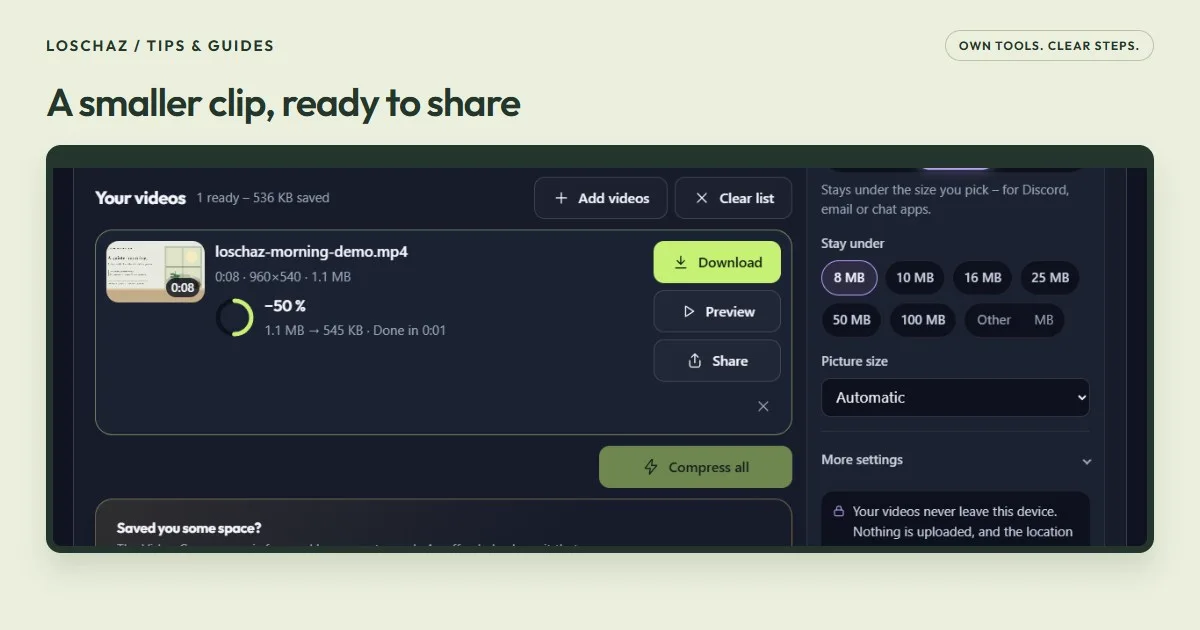
Select “Exact size”. Choose a size button or type a number in “Other”. If Discord shows a 10 MB limit, for example, an 8 MB target leaves some room. Use the limit actually shown to you.
Keep the useful part
Use “Trim” on the clip and adjust “Start” and “End”. Check the preview so you do not cut off the beginning of a sentence or the end of the action.
Compress and save
Select “Compress all”, wait for the result, then choose “Download”. Check the finished file size as well as the picture and sound before attaching it to Discord.
Which setting should you change first?
Leave “Picture size” on “Automatic” for the first attempt. The tool plans the picture size for the available bitrate. If the result looks too soft, shorten the clip before forcing a larger picture into the same small file.
| What you see | What to try |
|---|---|
| Fast movement breaks into blocks | Trim the clip or use a larger allowed target. |
| A screen recording has unreadable text | Crop or rerecord closer to the important area, or keep more file space. |
| The recipient cannot play it | Use H.264 in “More settings”, then test the new MP4. |
| The result is already as large as the original | Keep the original if it fits and looks better. |
On a phone, give the browser a fair chance
Processing happens on your device and can use memory, battery and time. Start with one short clip and keep the page visible until you save the result.
Encoding depends on the browser, device and input format. If the tool reports an unsupported codec or encoder, try an updated browser or a computer. Check any warning about missing sound before sharing.
Check the download, then attach that file
Play the downloaded MP4 from its saved location. Listen to the sound, inspect movement and check the size. Attach this new file, not the larger original beside it.
Your source video is not uploaded to the LoschaZ server for compression. The file stays on your device during the conversion; sending the finished video to Discord is a separate action you choose.
Questions you might still have
Does every Discord account have the same upload limit?
No. Allowances can depend on the account and current Discord tests. Read the limit in Discord and set your target accordingly; a preset in a compressor does not change Discord’s rules.
Will an exact-size setting always produce exactly that number?
It is a ceiling to aim below, not a request to fill every byte. Check the actual downloaded size. If it is still too large, lower the target or shorten the clip and run it again.
Does making the video smaller reduce quality?
Re-encoding can change detail. Trimming unused time often helps preserve the useful part within a tight limit. Keep the original and compare the finished file before sharing.
Sources & useful details
The screen recordings show LoschaZ tools using sample files created for these guides. They are demonstrations, not tests on every phone or promises of an identical result. Examples are not customer files.