The first checks, in pictures
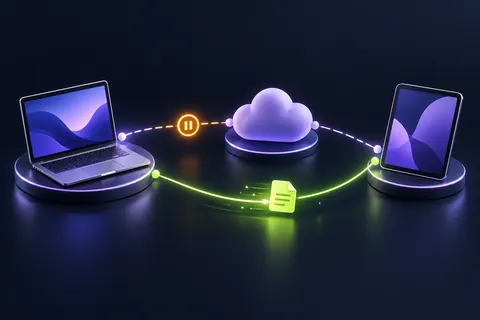
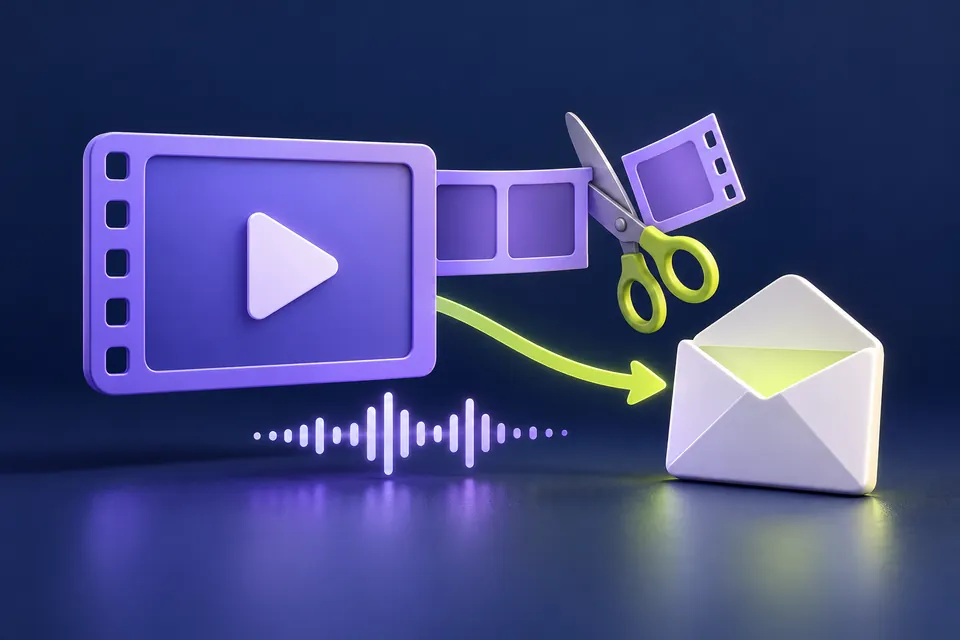
Start with these three checks. The pictures are simplified; the steps below explain the details.
Check what must be sent
A short clip and a full-quality original need different delivery choices.
See this step — Check what must be sentChoose a copy or link
Compress a delivery copy, or share the original through a suitable link.
See this step — Choose a copy or linkTest recipient access
Check the file plays and the intended person has permission.
See this step — Test recipient access
You need to send a short explanation, but the video is too large for email. The best fix depends on what the recipient needs to see. A talking-head message can tolerate different settings from a screen recording filled with small text. Sometimes removing an unnecessary minute is more effective than lowering the quality of every frame. Sometimes a restricted sharing link is more useful than an attachment. This guide helps you choose deliberately, verify the exported result and avoid the familiar second problem: a smaller video that arrives but cannot be understood.
The first useful check
Check the recipient's actual limit and needs. Trim irrelevant material first, test a short representative section with compression, or use a suitably restricted link. Verify playback, speech and small text before sending.
Which situation sounds like yours?
Recipient requires a file attachment
Prepare a verified copy within the actual receiving limit.
Small screen text matters
Preserve readable resolution and shorten irrelevant duration.
A link is allowed
Set deliberate access permissions and verify the intended recipient can open it.
Export fits but is hard to understand
Return to the original and change the approach.
Step 01
Find the real delivery requirement
Ask whether the recipient needs an attached file, a downloadable file or simply a way to watch the clip. A school portal, support ticket and personal email can have different rules. Read the receiving system's instructions rather than assuming that your email provider's limit is the only one that matters. Workplace administrators can set their own restrictions.
Record the maximum size, accepted format and whether a link is permitted. If the clip contains private information, decide who should have access before choosing a transfer method. A convenient public link is not automatically suitable for a recording of a customer account or family event. Keep the original file while making a delivery copy so you can try another method without repeated quality loss.
Step 02
Remove time that carries no information
Watch the beginning and end for setup, waiting or an accidental recording tail. If the recipient needs only a specific event, consider a clearly labelled excerpt that preserves enough context to understand it. Do not cut away information needed to interpret evidence or a support problem. A shorter clip is useful only if it still answers the recipient's question.
For an explanation you can re-record, plan a concise route through the task. Increase the size of important on-screen text before recording rather than relying on the recipient to read tiny labels later. Close private notifications and unrelated windows first. These source-level changes can improve usefulness more than repeatedly exporting the same cluttered recording at a lower bitrate.
Step 03
Test the hardest section before processing everything
Choose a representative moment: fast movement, a dark scene, fine text or an important spoken sentence. Use it to judge whether the export settings preserve what matters. A static title frame is not a good test for a video whose key moment contains motion. Listen as well as watch; a small file with inaudible speech has not completed the task.
When a tool offers a target size or quality choice, treat the preview and exported result as evidence rather than assuming the label guarantees suitability. Keep resolution high enough for essential text. Lowering resolution may be acceptable for a simple spoken message but can destroy a screen recording. Change one setting at a time so you can understand the trade-off.
Step 04
Use local compression when it fits the job
LoschaZ Video Compressor can prepare a smaller delivery copy in the browser. Use the relevant email workflow and inspect the result before attaching it. Processing time depends on the file and device; keep the page open while it works. A phone with limited memory may struggle with a large original, so a shorter source or a capable computer may be more practical.
After export, open the saved file outside the tool. Scrub through the beginning, middle and end, listen to the important speech and check orientation. If the file fits but the content is no longer usable, return to the original. Do not describe a poor result as successful merely because the upload accepts it. The recipient's ability to understand the clip is the real completion check.
Make a smaller delivery copy
Try the email workflow in Video Compressor. Files are processed locally; keep your original and check the downloaded result.
Open Video CompressorStep 05
Use a sharing link with deliberate permissions
A sharing link can avoid an attachment limit when the recipient is allowed to use one. Choose the service and permission mode appropriate to the material. Google Drive, for example, distinguishes restricted access from broader link access and offers different roles. Check the actual account or audience allowed to open the file; the fact that you can open your own link proves little about someone else's access.
Use a viewer role when editing is unnecessary, and test the recipient's intended access through the service's normal controls. Explain whether the recipient may need to sign in. Remember that revoking a link cannot recall a copy someone already downloaded. If the clip is sensitive, use an approved channel rather than solving a size problem by widening access beyond the intended audience.
Step 06
Send a message that helps the recipient use the file
Use a clear filename and a short message explaining what the clip shows and where the relevant moment occurs. Include a timestamp if it saves the recipient from searching. For a support request, add the error text in the email as well; someone should not have to extract essential information from a video just to understand your request.
Confirm that the attachment or link is the final checked version. If delivery fails, preserve the exact error and distinguish an attachment limit from a permission problem or unsupported format. Avoid sending several nearly identical versions without explanation. One usable file with a clear purpose is easier to handle than a thread full of uncertain attempts.
An example you can follow
A shorter recording keeps the text readable
Illustrative example: Ellis records a five-minute software problem, but only forty seconds show the error. Compressing the whole recording aggressively makes the menu labels unreadable. Ellis keeps the original, prepares an excerpt with enough context and checks a moderate-quality export. The smaller clip preserves the important labels and spoken explanation. The email includes the exact error text and the point where it occurs. The saving came from removing irrelevant duration before sacrificing the useful detail.
Delivery choice
Choose by the task, then verify the result. There is no universal best setting for every clip.
| Need | Useful approach | Check |
|---|---|---|
| Short spoken explanation | Trim and compress a copy | Speech remains clear |
| Small on-screen text | Shorter source, sufficient resolution | Important labels readable |
| Long private recording | Approved restricted link if permitted | Correct recipient and role |
| Portal attachment | Match its format and size rules | Upload confirms success |
Questions you might still have
Is there one email video size limit?
No. Sending and receiving services, administrators and portals can impose different limits. Check the destination's actual requirement.
Will a link always be easier?
Only if the recipient is permitted and able to use it. Access permissions and sign-in requirements can become a separate obstacle.
Does renaming a video to MP4 convert it?
No. A filename extension does not change the media encoding. Use a suitable export or conversion workflow and verify playback.
Sources & how this guide was made
Written by LoschaZ from the guidance below. The illustration is our own. Worked scenarios are labelled as illustrations; they are not customer stories or tests on every device. For product-specific steps, follow the current instructions for your device, account or item.