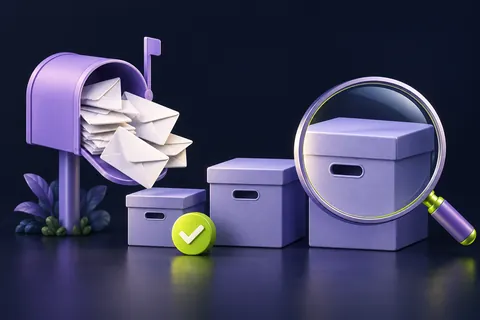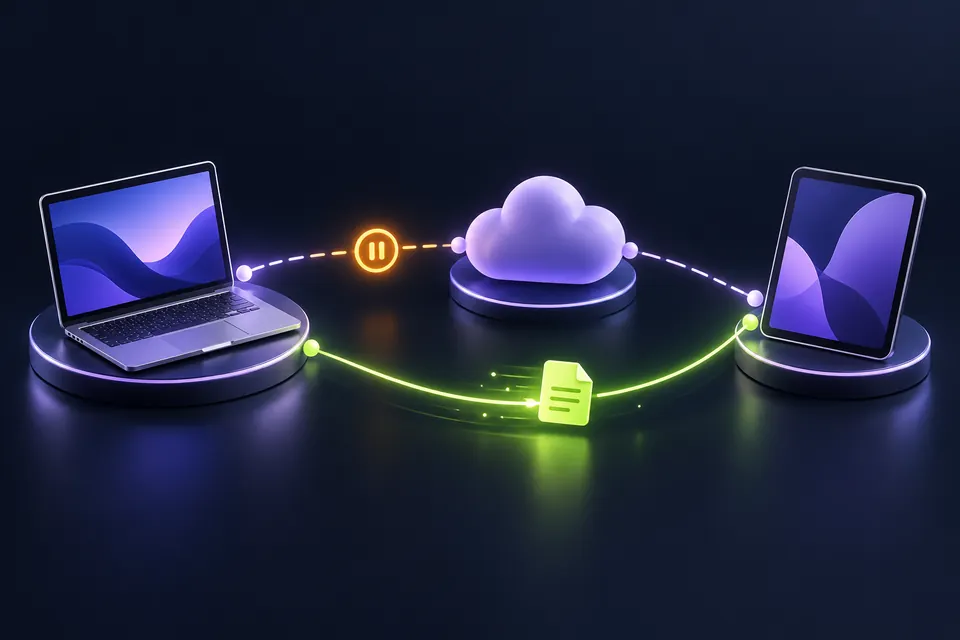
The first checks, in pictures
Start with these three checks. The pictures are simplified; the steps below explain the details.
Compare both places
Look for the same file on the computer and on the web.
See this step — Compare both placesSave unsynced work
Keep a separate copy before resetting or unlinking anything.
See this step — Save unsynced workCheck a new small file
Confirm that a harmless test file reaches the other location.
See this step — Check a new small file
OneDrive says it is looking for changes. You have saved your document, but the other computer still shows an old version. The temptation is to unlink everything and start again. First, find out where the file stops travelling. A local folder, the OneDrive website and a second device are three separate checkpoints. Comparing them with one harmless test file is often more informative than restarting several devices at random. This guide protects the copy you actually need, helps you read the status clues and gives you a short evidence record for support if the problem remains.
The first useful check
Save a separate copy of unsynced work. Compare the same account and folder locally, on OneDrive's website and on the second device. Test a small new file, then follow the status icon or exact error.
Which situation sounds like yours?
Local test is missing on the website
Check the sending device, account, quota and upload error.
Website has it; second device does not
Check the receiving device's account, folder selection and status.
Test works; one document fails
Investigate that file's restrictions, permissions or conflict.
Versions differ
Preserve both copies and compare content before replacing either.
Step 01
Protect the version you cannot afford to lose
Open the document that contains your latest work and use Save a Copy or the application's equivalent to put a clearly named copy outside the syncing folder. Include the date and a short label such as local-latest. Open that copy to check it. This is especially important if another device is showing a different version or the application reports a conflict. Do not overwrite either version while you are still identifying what happened.
If your organisation controls the device or the document contains restricted information, use an approved local or backup location. Do not upload it to a random troubleshooting service. The comparison test below can use a new text file containing only a word and a date. You do not need to expose the real document to learn whether basic syncing works.
Step 02
Confirm the account and the actual folder path
Check the account shown by the OneDrive app and the account open in the browser. Personal and work accounts can coexist, and their folder names can look similar. Compare the parent folder as well as the filename. Two files called budget.xlsx in different folders are not a sync conflict; they are two different files. Write the non-sensitive folder labels in the table.
Next, inspect the status icon and open the OneDrive activity panel. Microsoft distinguishes states such as paused syncing, signed-out or inactive accounts and files with a red error marker. Follow the explanation attached to the actual icon instead of treating every symbol as a generic internet problem. If the app identifies a particular file, start with that file's stated error.
Step 03
Run the three-checkpoint test
Create a small new file in the intended OneDrive folder. Give it an unmistakable name and put a short test sentence inside. Wait for the app to report its status, then look for that exact file on the OneDrive website. Finally, check the second device. Do not edit the test file from both devices at once; the first test is about delivery, not collaborative editing.
If the file reaches the website but not the second device, focus on the receiving device. If it never reaches the website, focus on the first device, its account or the file's upload status. If the new file travels correctly but one older document does not, inspect that document's name, path, permissions and application state. The location of the failure is more useful than the general phrase 'OneDrive is broken'.
Step 04
Use the smallest relevant fix
Resume syncing if the app clearly says it is paused. Sign in through the official app if it is signed out. Check the account's storage allowance if it reports a quota problem. For a file-specific error, read Microsoft's current restrictions and compare the filename and full path with the actual rule. Do not rename hundreds of files merely because one online tip mentions filenames.
Close an application normally after saving if it is holding the affected file open, then retest that file. Keep names simple during diagnosis: a short test filename removes one variable without changing your real folder structure. On a managed computer, ask the administrator about a policy or permission error. Bypassing an organisation's restrictions is not a useful sync repair.
Step 05
Treat conflicts as two pieces of work
When two versions differ, compare their contents before deciding which one to keep. A newer timestamp alone does not prove that a file contains all the important changes. Someone may have opened and saved an older copy later. Preserve both versions under distinguishable names while you reconcile them. Where available, inspect the service's version history for the document rather than relying only on the filename.
For a spreadsheet, compare the relevant sheets and totals. For a document, compare the changed paragraphs. Make the final choice in one place, then allow syncing to finish before editing elsewhere. The goal is not to remove the conflict badge as quickly as possible; it is to keep the work represented by both copies. Your separate local backup gives you a way back if the first comparison was incomplete.
Step 06
Escalate with evidence before resetting everything
If the small test still fails, record the exact error, the account type, which checkpoints passed and the time of the last attempt. Add the application and operating-system versions if support requests them. Remove private file contents from screenshots. A support request saying 'local to web fails, web to second device works' is much more actionable than a screenshot of a spinning icon alone.
Resetting or unlinking may be appropriate under Microsoft's current instructions, but it should follow the preservation and comparison steps. Before doing so, confirm where unsynced local work lives and whether it has an independent copy. After any repair, repeat the same small test and then verify the original document. Stop when the real file is current in the intended locations; additional resets do not make a working setup more reliable.
An example you can follow
The file reaches the web, but not the laptop
Illustrative example: Sam saves a document on a desktop and sees an older copy on a laptop. A new test file appears on the OneDrive website within the app's normal sync cycle, so the desktop-to-cloud path works. The laptop's activity panel shows that syncing is paused. Sam resumes it and waits for the test file, then compares the real document. There is no need to unlink the desktop or move the whole archive. The small test replaced a vague problem with one specific observation: the receiving device had stopped updating.
Three-checkpoint record
Use a harmless test file. Record a time and a status at each checkpoint.
| Checkpoint | Observation | Next action |
|---|---|---|
| First device | File saved locally? | Check the actual folder |
| OneDrive website | Same file and contents? | Check upload status if missing |
| Second device | Same account and folder? | Check receiving sync status |
| Original document | Latest work preserved? | Compare any conflicting copies |
Questions you might still have
Should I unlink OneDrive immediately?
First preserve unsynced work and identify which part of the path fails. Unlinking can be a valid later step, but it is not a substitute for knowing where your current files are.
Why does a new file sync while an older one does not?
That points towards a file-specific condition, such as a name or path restriction, permission issue, application lock or conflict. Read the actual error attached to that file.
Is a cloud icon proof that my latest edits are safe?
Use the status explanation and open the expected version on the website. The icon alone does not replace checking the contents you need.
Sources & how this guide was made
Written by LoschaZ from the guidance below. The illustration is our own. Worked scenarios are labelled as illustrations; they are not customer stories or tests on every device. For product-specific steps, follow the current instructions for your device, account or item.