The short answer
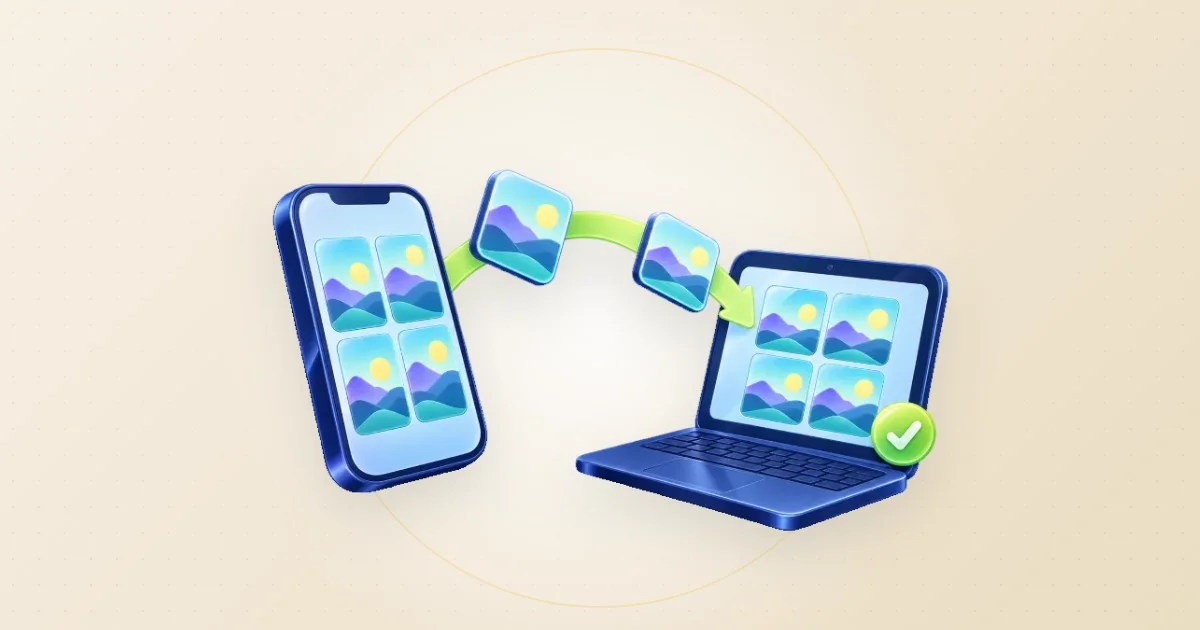
On the computer, choose “Start private transfer”. Scan its QR code with the iPhone camera, open the link, then choose “Photos & videos”. Save the received files before closing either page.
Open the free toolSee the steps in action
A short recording of our tool, without sound. Turn on captions for the steps in your language. The written instructions below cover the same process.
Open or download the video · 0.2 MB · 23.5 s
Each step is also explained in writing.
- Open Photo Transfer on the receiving computer. This recording uses two local browsers; no iPhone camera is shown.
- Pair the second browser. The private QR code and link are hidden in this demonstration.
- Send three own sample images. Check that all three arrive; the real tool does not re-encode their bytes.
- Choose Save for one file, or Save all as ZIP for the group. Open and check your saved downloads before closing the page.
Try the sample fileOur own sample. No personal data.
A little preparation prevents a second attempt
Use an up-to-date browser on each device. Start with both on your home Wi-Fi, connected to the internet, and keep the phone charged. Some networks isolate devices even on the same Wi-Fi.
If a photo is only in iCloud, the iPhone may need to fetch it first. Start with one ordinary photo rather than a whole album.
Connect, choose, then save
Show a code on the computer
Open Photo Transfer and select “Start private transfer”. Leave this page visible. Without a connection, pairing pauses after ten minutes; start again for a fresh code.
Scan from the iPhone
Open Camera in Photo mode, point it at the code and tap its link. Open it in a current browser, then wait for the connected message.
Choose what to send
Tap “Photos & videos”, select your pictures and confirm in the system picker. Use “Other files” for a document already stored in Files.
Wait on both screens
Keep both pages open and the iPhone unlocked until completion. A sleeping or backgrounded browser may interrupt the transfer, despite the tool’s request to keep the screen awake.
Save on the computer
Choose “Save” beside a received file. With two or more, “Save all as ZIP” appears. Open the download and check it before closing the receiving page.
An example: three pictures for a school project
For a school project, suppose you need a plant photo, a close-up of its leaf and a picture of its label. Send those three first. Check that each opens and the label is readable, then save them together as a ZIP.
This example is not a speed benchmark. A ZIP groups the files without compressing their photo data. For a smaller email attachment, use Image Compressor on a separate copy afterwards.
What goes through the server?
The files use an encrypted WebRTC connection between devices. LoschaZ passes encrypted pairing messages, not your photos. Connection-discovery services receive technical network information; the privacy policy explains this.
Keep the QR code and link private: anyone holding them may connect. Received files live in the open page, so a completed transfer is not a backup until you save and check the download.
If the devices will not connect
- Keep the page showing the code visible on the computer and scan a new code if the first one expired.
- Try a trusted home network. School, office, guest Wi-Fi and some VPN connections can block direct device connections. Do not bypass a workplace security policy.
- If one photo works but a large selection fails, send smaller batches. Available browser memory can be a limit well before the tool’s four-gigabyte per-file ceiling.
- If a selected file cannot be read, download it to the phone first and choose it again. Avoid repeatedly refreshing while a transfer is moving.
Questions you might still have
Will my iPhone photos arrive as JPG or HEIC?
Photo Transfer sends the file supplied by the iPhone without re-encoding. The picker’s format can vary. Check the saved extension; HEIC requires compatible software.
Can I send a file back from the PC to the iPhone?
Yes. Once connected, select or drop a file on the computer’s page. On the phone, choose “Save”; find Safari downloads through its Downloads button or Files. “Save to photos” appears only where the browser supports sharing those files.
Do the devices need the same Wi-Fi?
Not always, but start there. The browsers need a direct connection, which some guest, office and mobile networks block. There is no relay fallback. If pairing fails, try another trusted network.
Sources & useful details
- Apple: scan a QR code with your iPhone camera
- Apple: find downloaded files on iPhone
- MDN: using WebRTC data channels
The screen recordings show LoschaZ tools using sample files created for these guides. They are demonstrations, not tests on every phone or promises of an identical result. Examples are not customer files.