The short answer
Set the spoken language in Subtitle Studio before choosing your video. Review the generated text and timing, then open “Export”: choose SRT or VTT for a separate subtitle track, or “Create MP4” for captions that become part of the picture.
Open the free toolSee the steps in action
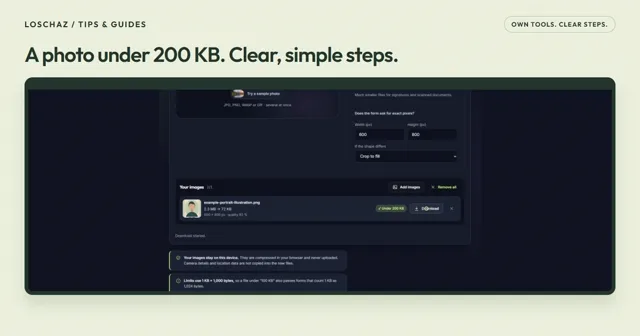
A short recording of our tool, without sound. Turn on captions for the steps in your language. The written instructions below cover the same process.
Open or download the video · 0.3 MB · 18.21 s
Each step is also explained in writing.
- Import an existing SRT subtitle file before the video.
- Open the matching original LoschaZ sample clip.
- Correct a word, adjust timing and check the preview.
- Export the corrected SRT. This demo does not run speech recognition.
Try the sample fileOur own sample. No personal data.
Choose a small first project
Start with a short clip and clear speech. Music, overlapping voices and noise can confuse recognition; every line still needs your review.
Set “Spoken language” before choosing your file. Start with “Fast” on a phone. The first recognition needs a model download; “Accurate” uses a larger model and more resources.
Create your draft, then read it with the sound on
Set the starting options
Choose the spoken language and a caption length. “Medium” is a useful starting point for a normal explanation. Leave “Also translate into” on “No translation” until you have checked the original words.
Choose your clip
Use “Choose video or audio”. The page reads the file and begins recognition. Keep the page open while the progress steps run.
Check the captions
In “Captions”, listen to the video while reading the editable lines. Correct names, numbers, punctuation and missing words. Remove any words the recording does not contain.
Adjust the timing
Drag a caption on the timeline to move it. Drag its edges to change when it appears and disappears, or edit the start and end fields. Play the whole sentence again after each change.
An editing example: one breath, two readable captions
Imagine a gardening clip saying “Today we are planting basil. Keep the label beside the pot.” If the draft mishears “basil”, correct it first. Split the two sentences into separate captions.
Make each appear with its spoken sentence. Check at normal speed in a phone-sized preview. Adjust the timing or split the text again if reading feels rushed; keep the meaning faithful to the recording.
Choose SRT, VTT or an MP4 for a reason
A subtitle file contains text and timing, not your video. Open or upload it alongside the matching video. A separate track can often be switched off; burned-in captions are part of the picture.
SRT does not keep the full preview styling. For that visible look, check “Style” and create an MP4. Use “Save project” and keep the original video for later edits.
| Output | Use it when |
|---|---|
| SRT | You want a separate subtitle file for a platform or editor that accepts it. |
| VTT | Your website or player asks for WebVTT subtitles. |
| MP4 with captions | You want the words permanently visible in the picture. |
| Project file | You want to continue editing captions and their appearance later. |
Make the text comfortable to read
Start with contrast: light text with a dark outline or box is easier to follow over changing footage. Keep faces and important details visible.
For vertical clips, check the safe-zone preview and the final destination’s overlays. Review translations separately; a correct original does not guarantee a correct translation.
Save the result and check what your device supports
Under “Export”, choose SRT or VTT for a separate file. For video, choose a resolution, “Create MP4”, then “Download MP4”. Open the saved result and check sound and timing. A 720p first export can be easier on a phone.
Encoding depends on browser and device support. If MP4 is unavailable, try a subtitle-file export; if the source cannot be decoded, use another compatible source or device. Recordings are not uploaded for transcription. Models download from external providers; captions and settings may stay in this browser. Export important projects as a backup.
Questions you might still have
Can I use subtitles I already have?
Yes. On the starting screen, choose “I have a subtitle file” first, then select the matching video. Check the imported words and timing. You do not need another automatic transcription just to style existing captions.
Why are the colours missing in my SRT?
SRT is primarily text and timing, not a copy of the preview styling. For the visible styled result, export a captioned MP4. Keep a project file if you want to change the look later.
Why does the first attempt take longer?
Automatic recognition downloads its model before it can process your audio. That model may be cached for later visits, but clearing browser data or cache removal can cause another download. Device speed also matters.
Sources & useful details
- YouTube Help — Add subtitles and captions
- YouTube Help — Supported subtitle and closed caption files
- MDN — WebCodecs API
The screen recordings show LoschaZ tools using sample files created for these guides. They are demonstrations, not tests on every phone or promises of an identical result. Examples are not customer files.