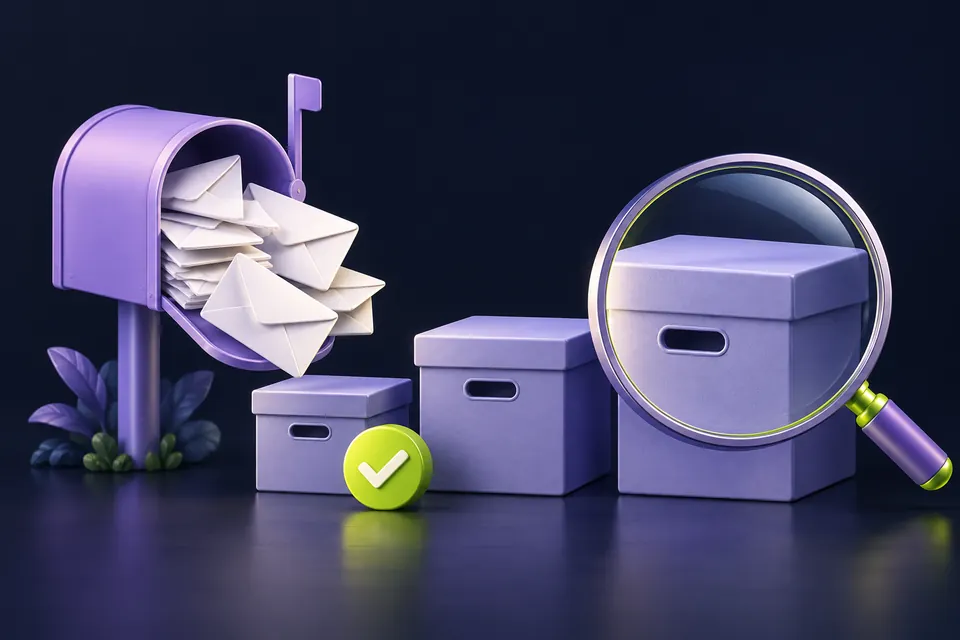
The first checks, in pictures
Start with these three checks. The pictures are simplified; the steps below explain the details.
Check the shared storage
Gmail, Drive and Photos can use the same account storage.
See this step — Check the shared storageInspect the large items
Open the results. Keep important files before deleting.
See this step — Inspect the large itemsTest incoming mail
After space is available, send a fresh test message.
See this step — Test incoming mail
You delete twenty emails, but Gmail still says the account is full. The surprising part is that the inbox may not be the main problem. Google storage is shared across services, and a large video or backup can outweigh years of short messages. Another trap is the Archive button: archiving tidies the inbox but does not remove the message from your account. This guide starts with the storage breakdown, then follows the delivery problem all the way through. The aim is not simply to make the warning disappear. It is to receive a fresh test message and know what to ask a sender whose earlier email bounced.
The first useful check
Check the account's shared storage first. Archive does not free storage. Preserve important files, remove an understood category, allow the storage display to catch up and test with a newly sent email.
Which situation sounds like yours?
Mail arrives in webmail but not the app
Investigate the app's sync and account selection.
All services report a full account
Inspect the shared storage breakdown.
Only one sender fails
Ask for the delivery failure message and check filters.
The storage figure has not changed yet
Allow processing time before deleting more.
Step 01
Check the account before changing anything
Open Gmail in a browser and confirm the account address. This matters if your phone has both a personal and a work account: the full-storage warning may belong to only one of them. Open the Google account storage view from that account and record the total used space and the largest service. Do not assume that a warning displayed inside Gmail means Gmail itself is the biggest user.
Write down what stopped working: all incoming messages, one sender, attachments or the phone app alone. If new messages appear in webmail but not on the phone, you already have useful evidence of a different problem. A phone sync issue should not trigger a bulk deletion of perfectly good cloud files. Keep these observations in the table below before testing any fix.
Step 02
Look for one large, understood saving
Compare the storage assigned to Gmail, Drive, Photos and any counted backups. Google documents that these services can share the account allowance. Choose a category whose contents you recognise. If a large video already has a tested copy elsewhere, it may be easier to evaluate than thousands of individual messages. Do not remove the only copy of family photos or a backup you might need simply because it is large.
In Gmail, search for messages with attachments or use its advanced search controls to find large messages. Open a sample before selecting a batch. A message with a large attachment may also contain a useful conversation or proof of purchase. Save what matters to an appropriate location and test the saved file. An archive folder inside Gmail still belongs to the same account; moving mail there does not reduce its storage.
Step 03
Understand the final deletion step
Moving an item to a bin can preserve a recovery opportunity while the item still counts towards storage. Read the service's current storage and deletion explanation before deciding whether to remove it permanently. Review the actual contents of the bin, including items deleted earlier for unrelated reasons. A button that empties everything may affect more than the files you just selected.
Work in one category at a time and note what you changed. If you are unsure whether a file is the last usable copy, pause that item and choose another. There is no benefit in making an irreversible change quickly and then discovering that your export was only a shortcut. For shared work files, clarify ownership and the effect on other people rather than treating a shared folder like a private archive.
Step 04
Give the account time to reflect the change
Google says storage figures can take time to update after large deletions. A stale number is not a reason to keep deleting more. Record the current figure and the time of your change, then revisit the account's storage view later. If the page gives a specific waiting period or processing message, follow it. Repeatedly refreshing every few seconds produces little useful information.
Use this waiting time to check whether the original issue is really storage-related. Search all mail for the missing sender, inspect Spam and Trash, and check whether a filter moved the conversation. Do not weaken spam protection to force a test through. A specific sender's message can fail for reasons unrelated to your quota, so preserve any delivery failure report they received instead of guessing from an empty inbox.
Step 05
Run a new-message test, not an old-message search
Ask a trusted person to send a short new email with a unique subject, such as a date and a test word. Send a reply after it arrives. Record the sending time, arrival time and which client you used. This distinguishes a recovered account from a phone that is still displaying an old view. Avoid including confidential information in a test message.
An email that was rejected while your storage was full may need to be sent again. Do not promise someone that every old message will automatically appear after cleanup. Tell important senders that you had a storage problem, that a fresh test now works, and that they should resend any message for which they received a failure notice. If the new test also fails, keep the sender's exact error and contact the appropriate provider or workplace administrator.
Step 06
Make the next warning easier to solve
Create a small monthly check: note the largest storage category, review one large item and confirm that an important backup still exists. This is more manageable than a dramatic annual cleanup. If you regularly need the data online, compare a larger allowance with your own archive arrangement; either can be sensible. The guide does not depend on buying a subscription.
Keep a short note of what solved the issue. For example: 'Old video archive was the large category; messages were not the main cause; new test received in webmail.' That record saves time if a similar warning returns. Once delivery works, stop changing settings. An inbox can remain untidy while the account works perfectly; visual tidiness and available storage are different jobs.
An example you can follow
A small inbox, a full account
Illustrative example: Jordan deletes newsletters but sees almost no difference. The storage breakdown shows that an old video folder, rather than Gmail, dominates the account. Jordan checks a downloaded copy, removes the intended archive and waits for the storage view to update. A new test message arrives in browser Gmail, but the phone still shows yesterday's inbox. That second observation prevents more unnecessary deletion: the remaining issue is on the phone. Jordan refreshes the app using its normal sync controls and asks a client to resend the message that had bounced. The useful insight is that one warning can hide two separate tasks: freeing account space and updating a mail client.
Storage and delivery audit
Record observations rather than passwords or private message contents.
| Check | What to record |
|---|---|
| Correct account | Account label, not a password |
| Largest category | Service and reported size |
| Saved copy | Where it is and whether it opens |
| Cleanup | Category changed and time |
| Fresh message | Subject label and arrival time |
| Remaining issue | Webmail, phone or one sender |
Questions you might still have
Does archiving Gmail messages free space?
No. It removes them from the inbox view while keeping them in the account. Use the storage breakdown to decide what actually needs attention.
Why did the missing email not arrive after I cleared space?
It may have been rejected while the account was full. Ask the sender whether they received a delivery failure and request a fresh message after testing your account.
Should I empty every bin immediately?
Review the contents and confirm any needed copies first. Permanent removal affects recovery options; a storage warning does not make every old file disposable.
Sources & how this guide was made
Written by LoschaZ from the guidance below. The illustration is our own. Worked scenarios are labelled as illustrations; they are not customer stories or tests on every device. For product-specific steps, follow the current instructions for your device, account or item.