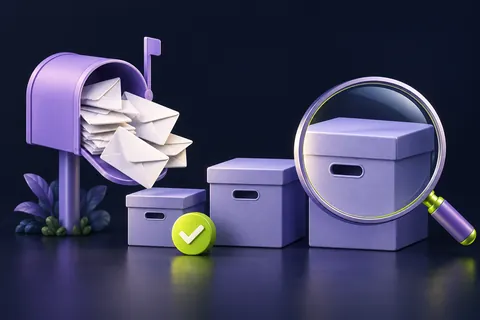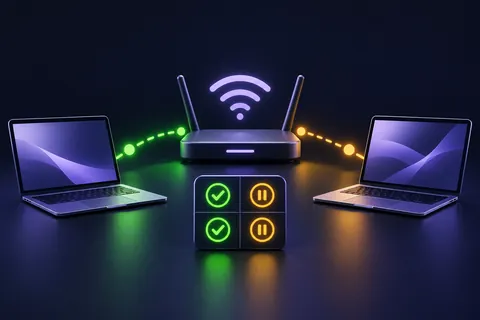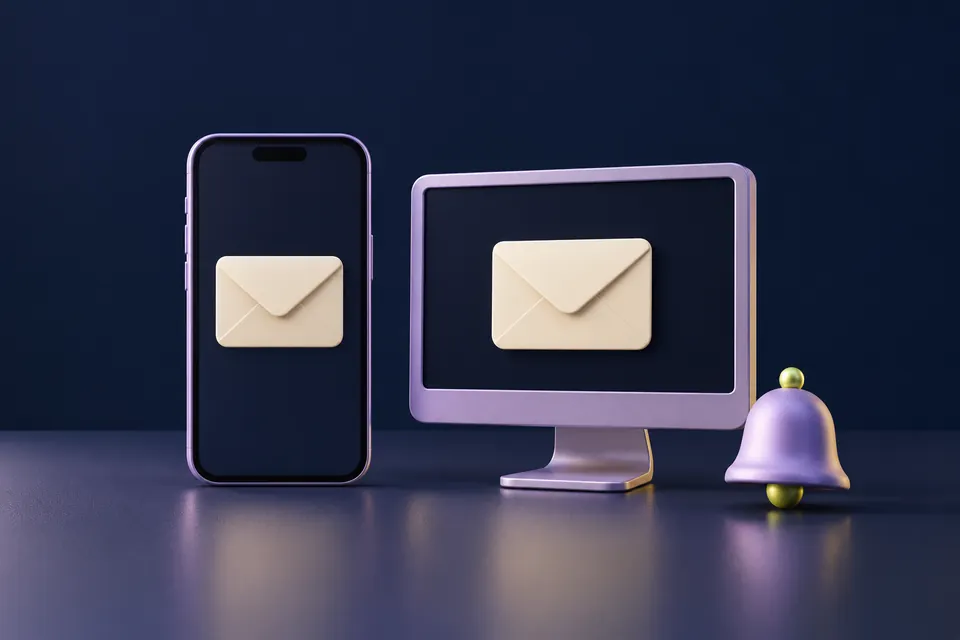
The first checks, in pictures
Start with these three checks. The pictures are simplified; the steps below explain the details.
Send one test message
Use a harmless message with a unique subject.
See this step — Send one test messageCompare web and phone
Look for that exact subject in the same account in both places.
See this step — Compare web and phoneSeparate mail from alerts
If the message is in the app, check notification settings.
See this step — Separate mail from alerts
Your laptop shows a new email, but the phone does not. Or the message is in the phone app when you open it, yet the phone never alerted you. Those are two different problems. Before deleting the account from the app, compare the same mailbox on the web and on the phone using one fresh test message. The comparison below gives you a useful starting point and a support report that says more than 'Outlook is broken'. It covers Outlook.com and the Outlook mobile app; work accounts and other providers may have additional policies.
The first useful check
Send one harmless test message with a unique subject. Check the same account on the web and in the phone app. If it is on the web only, investigate mobile sync. If it is in both without an alert, investigate notifications.
Which situation sounds like yours?
Missing on web and phone
Investigate delivery, storage, folders and sender errors.
Present on web only
Check the phone app's account and sync state.
Present in app, no alert
Check notification permission and quiet modes.
Only one sender is affected
Obtain that sender's exact non-delivery result.
Step 01
Use a message you can identify
Ask someone you trust to send a short message with an unusual subject, such as 'Mailbox check Tuesday 14:10'. No attachment is needed. Confirm the exact recipient address, especially if you use several similar aliases or work and personal accounts. Note the send time and whether the sender receives a non-delivery message. Avoid using a sensitive document as a troubleshooting sample.
Open the mailbox through the provider's official website and search for that subject. Then open the same account in the phone app and search again. Check the account name, not just the combined inbox. This controlled test avoids chasing an old message that a rule moved last week or a sender never successfully sent. Record the result in the comparison table below.
Step 02
If the message is missing on the web too
Look for an account warning and check mailbox or cloud storage limits. Microsoft states that full Microsoft cloud storage can prevent Outlook.com from sending and receiving mail. Check Junk, the Other tab, filters, sorting, rules and forwarding before concluding that delivery failed. A message outside the main inbox is still delivered mail, even if it was not where you expected.
Ask the sender for the exact non-delivery reason if one arrived, with unnecessary private information removed. An incorrect address and a full recipient mailbox need different fixes. If only one sender is affected, keep that distinction in the report. Removing and adding the phone account cannot repair a delivery failure that is also visible in the web mailbox.
Step 03
If the web has it but the app does not
Check that the phone has a working connection, then refresh the intended mailbox in the app. Look for a sign-in prompt or account error. A recently changed password, an expired authorisation or an organisation's access requirement may need attention. Complete sign-in through the app's legitimate flow rather than entering credentials into a link from an unsolicited message.
Update Outlook through the device's normal app store and follow Microsoft's current mobile troubleshooting guidance. If the account belongs to an employer or school, ask its help desk about the visible error and device requirements. Do not change server settings copied from an unrelated tutorial. Outlook can contain accounts from different providers, and the right authentication method depends on the actual account.
Step 04
If the message is present but the alert is missing
Open the app and confirm the test message is already there. That result moves the investigation from delivery to notifications. Check Outlook's notification preferences for the relevant account and the phone's permission for the app to show alerts. Also inspect any active Focus, Do Not Disturb or scheduled quiet setting that could explain the silence.
Run a second test after changing one relevant setting. Put the phone in the state where the issue normally occurs, such as locked on the desk, and note whether an alert appears. Do not change every battery, background and notification option at once. If the problem returns only under a particular mode, that observation is more useful than a temporary success after ten simultaneous changes.
Step 05
Protect drafts before account resets
Before removing an account, clearing app data or reinstalling, inspect Drafts and Outbox for work that may exist only on the device. Save needed text or attachments somewhere appropriate and private. Confirm that you can sign in again and reach your required verification method. A repair that removes access or loses an unsent message creates a second problem.
Use any account-reset option only as described in current official guidance for your app and account type. A managed device may restrict these actions. If you are uncertain about where messages are stored, ask support first. The web-versus-app comparison should already have narrowed the issue enough that a reset is a deliberate step, not a ritual performed whenever mail looks late.
Step 06
Verify delivery and notification separately
After the chosen fix, send another short test with a new subject. Confirm arrival in the web mailbox, arrival in the app and, if you want alerts, the notification. Those are three separate outcomes. If a mailbox was full, ask the sender to resend important messages that bounced; do not assume every failed delivery will automatically reappear when space is available.
Keep a brief record if the fault is intermittent: account type, time, connection, phone state and where the message appeared. Share only the details necessary with official support. A report saying 'web received it at 14:10, app remained unchanged until manual refresh, notifications enabled' gives someone a useful problem to investigate. It also stops you repeating the same checks without learning anything new.
An example you can follow
Delivered, but deliberately quiet
Illustrative example: Sam searches the test subject on the web and in Outlook on the phone. Both show the message. The phone was in a scheduled quiet mode, so the missing alert was not missing email. Sam checks the mode's allowed notifications, changes the setting that fits their preference and sends a second test while the phone is locked. There was no need to delete the account or alter mailbox rules. The web/app/alert comparison identified the part that actually differed.
The three-column mail test
Use one new subject and the same account in every check.
| Web mailbox | Phone app | Likely area to inspect |
|---|---|---|
| Missing | Missing | Delivery or mailbox organisation |
| Present | Missing | Mobile account or sync |
| Present | Present; no alert | Notifications and quiet modes |
| Present after search | Present after search | Folder, category or inbox view |
Questions you might still have
Does no notification mean no email?
No. Open the app and search for the test message. Alerts can be suppressed while mail still arrives.
Should I delete the account first?
First compare web and app, preserve unsent work and confirm you can sign in again.
Will mail bounced during full storage return automatically?
Do not rely on that. Microsoft says messages bounced while storage was full are unrecoverable; ask the sender to resend important mail.
Sources & how this guide was made
Written by LoschaZ from the guidance below. The illustration is our own. Worked scenarios are labelled as illustrations; they are not customer stories or tests on every device. For product-specific steps, follow the current instructions for your device, account or item.