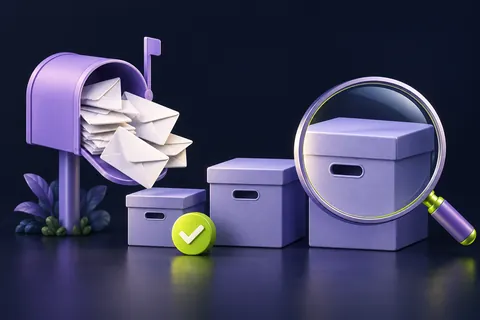
The first checks, in pictures
Start with these three checks. The pictures are simplified; the steps below explain the details.
Check the destination
Read the masked email or phone number on the official screen.
See this step — Check the destinationMake one controlled request
Follow the displayed waiting instructions. Do not keep pressing Resend.
See this step — Make one controlled requestUse an official alternative
Choose a registered method you control, if the service offers one.
See this step — Use an official alternative
You press Send code, watch the clock and press it again. Then three messages arrive together and none seems to work. The useful question is not simply why the code is late. It is whether you requested it for the right account, whether the service sent it to a destination you still control, and whether the message belongs to the current sign-in attempt. This guide gives you a small, orderly investigation. It does not bypass verification or recover an account for you. Keep your codes, passwords and backup codes private throughout the process.
The first useful check
Keep one sign-in attempt open. Check the masked destination, the delivery channel and the service's exact message before requesting another code. Use an already registered alternative if the official flow offers one.
Which situation sounds like yours?
Masked destination is unfamiliar
Use official recovery; refreshing another inbox will not help.
Ordinary mail is also missing
Check mailbox storage and sync first.
Code arrives but is rejected
Match the current request and retain the exact error.
An approval arrives unexpectedly
Reject it and review account security through the official site.
Step 01
Check which account and which destination
Read the sign-in address carefully. Personal and work accounts can use similar names but have different recovery arrangements. A browser may also suggest a previous account automatically. Compare the masked email address or phone number in the verification screen with the destination you expect. If the final digits are unfamiliar, do not keep waiting for a message on your current phone.
Write a short note containing the service, account type, chosen channel and visible error. Do not put the actual code or full recovery details in the note. This separates a delivery problem from an access problem: a code going to an old number will not be fixed by refreshing the inbox. Start the provider's official recovery route when you no longer control the offered destination.
Step 02
Use one request as a controlled test
Keep one official sign-in tab open and follow the timing or retry instruction displayed there. Repeated requests can trigger provider limits and make delayed messages harder to match to their attempts. There is no universal waiting period that works for every service. A message saying that requests are temporarily blocked is different from a screen that says a code was sent successfully.
Record the request time and channel, then wait as directed. If several messages arrive, use the code associated with the current request according to the provider's instructions. Do not assume an older code remains valid after a new request. Avoid copying trailing spaces. If the official screen rejects a code, keep the exact error rather than starting several more requests in different tabs.
Step 03
Follow the email path all the way through
Open the destination mailbox through its official website if the phone app looks stale. Check spam, junk and other inbox categories, then search for the service name and recent messages. A mailbox rule or forwarding arrangement may move mail away from the expected folder. If ordinary new mail also fails to arrive, investigate the mailbox itself before treating verification as the only broken service.
Check available mailbox storage and any visible account warning. A full mailbox or a sync problem can affect more than one sender. Be careful when searching the web for a support address: recovery scams often imitate familiar brands. Navigate to the provider directly and use its help pages. A genuine-looking sender name alone does not prove that a message or its links are trustworthy.
Step 04
Distinguish SMS from an authenticator prompt
An SMS code, a push approval and a code generated by an authenticator app are different mechanisms. First confirm which one the sign-in screen requested. For SMS, check that the intended SIM is active and can receive messages, including any carrier restrictions that may affect service messages. For a work account, an administrator may need to inspect the organisation's authentication configuration.
For an authenticator, open the app you actually registered for that account and follow the provider's instructions. Check device time settings if the service identifies time-based code problems. Do not approve an unexpected push request just to make it disappear. If you did not initiate the sign-in, reject it and inspect account security through a known official route. Never read a code to someone who contacts you.
Step 05
Use an existing alternative, not an improvised bypass
The official screen may offer a previously registered email, authenticator, security key or backup code. Use only a method you recognise and control. A backup code is a credential, so keep it out of chat messages and screenshots. If you still have a signed-in device, avoid casually signing it out while you determine which recovery options remain available.
When no offered method works, use the account provider's recovery process. Work or school accounts may require the organisation's help desk rather than consumer recovery forms. Supply the requested ownership information accurately. No outside guide can promise that recovery will succeed or that a waiting period can be removed. Paid strangers claiming to bypass verification are not a substitute for the official process.
Step 06
Make the next support message useful
A useful report says which channel failed, when you made one controlled request, whether ordinary messages arrive and what the official screen displays. It should also distinguish 'message never arrived' from 'message arrived but code was rejected'. Include a screenshot only after hiding codes, recovery addresses and other private details that the recipient does not need.
After access is restored, review recovery contacts and authentication methods from inside the account settings. Remove obsolete details only after a working replacement is established according to the provider's process. Store backup codes securely if the service supplies them. The long-term improvement is a recovery route you can actually use, not simply a successful sign-in today.
An example you can follow
The inbox was not the destination
Illustrative example: Jules checks a personal inbox for ten minutes while trying to sign into a work account. The verification screen actually shows the final digits of an old work phone. Writing down the destination reveals the mismatch immediately. Jules stops requesting email codes that were never being sent and contacts the organisation's help desk through its known channel. The test did not defeat security; it identified the missing access step and preserved a clear record for the person who could help.
A recovery note without secret codes
Record observations only. Never paste a password, verification code or backup code into a shared note.
| Observation | Example | Why it matters |
|---|---|---|
| Account type | Work account | Identifies the correct support route |
| Channel | SMS to recognised ending | Checks where delivery should occur |
| Request and outcome | One request; no message | Separates delay from rejection |
| Control test | Ordinary SMS arrives | Narrows the delivery problem |
Questions you might still have
Should I keep pressing Resend?
No. Follow the service's retry instructions. Repeated requests can create limits or overlapping messages.
Can LoschaZ receive the code for me?
No. Enter credentials only in the service's official sign-in or recovery flow.
Why does a work account need a different route?
An organisation may manage its authentication methods and recovery policies. Its authorised help desk can be the relevant contact.
Sources & how this guide was made
Written by LoschaZ from the guidance below. The illustration is our own. Worked scenarios are labelled as illustrations; they are not customer stories or tests on every device. For product-specific steps, follow the current instructions for your device, account or item.