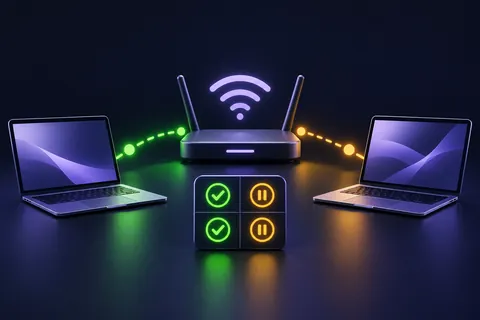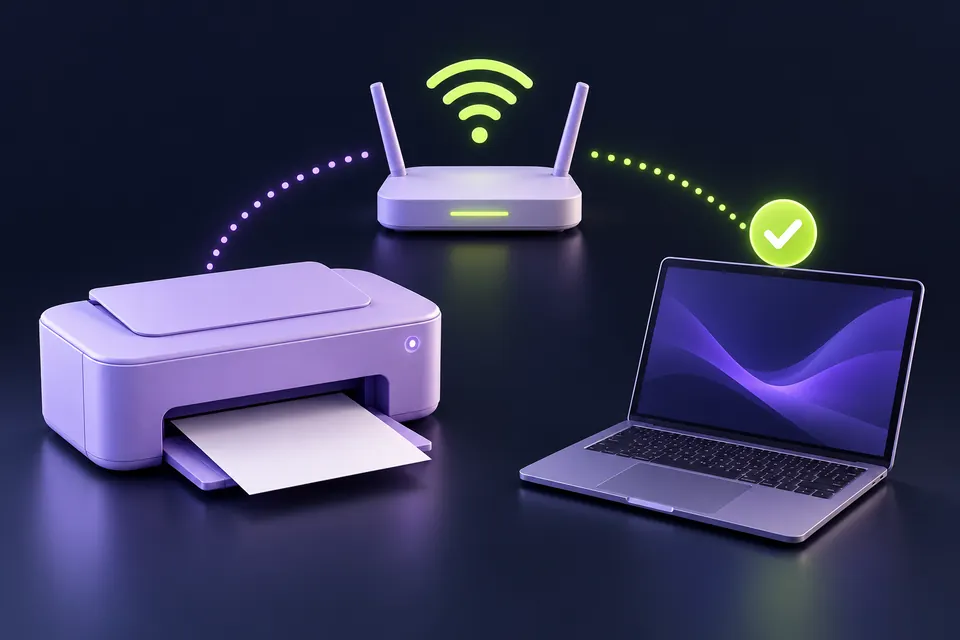
The first checks, in pictures
Start with these three checks. The pictures are simplified; the steps below explain the details.
Check the printer itself
Read its display and check paper, power and visible errors.
See this step — Check the printer itselfCheck the connection
The computer and printer must use the intended connection.
See this step — Check the connectionTry one short page
Use a simple test after the relevant fix. Avoid a stack of duplicate jobs.
See this step — Try one short page
The printer is switched on. Its Wi-Fi light looks normal. Windows still calls it offline. That message describes the computer's ability to use a particular printer connection; it does not prove that the machine itself is broken. Before buying a cable, replacing ink or reinstalling everything, separate three jobs: printing inside the machine, reaching it over the network and sending a job from the computer. You can often narrow the fault with one printer-generated page and one harmless document. This guide is for an ordinary home printer. For a managed office queue, involve the administrator when permissions or server settings are involved.
The first useful check
Print a status or test page from the printer's own controls, then compare a small print job from another authorised device. Check the exact network and selected printer queue before reinstalling drivers.
Which situation sounds like yours?
Internal page fails
Read the printer's own hardware or consumable message.
Internal page works; no device prints
Check the printer's network or cable path.
Another device prints
Investigate the original computer's queue and connection.
Only one document fails
Check that document's application and export settings.
Step 01
Test the printer without the computer
Use the printer's own menu to print a status, configuration or test page, following its manual. The name differs by model. If that page fails, inspect the printer's display for paper, cover, consumable or hardware messages. A computer driver cannot fix a paper jam inside the machine. Do not reach into moving parts or remove panels beyond the maintenance steps described by the manufacturer.
If the page prints normally, keep it nearby. It establishes that the printer can produce a page independently of the computer and may show useful connection information. The test is not proof that every part is perfect, but it moves the investigation towards the connection or queue. Avoid printing a long document repeatedly; one simple page makes the result easier to interpret and wastes less paper.
Step 02
Compare the actual network, not the Wi-Fi symbol
Check the network name on the computer and on the printer's connection screen or configuration page. A guest network, an old router name or a phone hotspot can leave both devices showing Wi-Fi while keeping them apart. Different frequency bands do not automatically mean different networks; follow your router and printer's supported setup rather than assuming that every 2.4 GHz and 5 GHz label is a fault.
If the printer recently stopped working after a router change, start there. Reconnect it using the manufacturer's normal setup flow. Do not disable router security or expose the printer to the internet. A workplace or guest network may intentionally prevent devices from discovering each other. In that case, the correct next step is an approved connection method or help from the network owner.
Step 03
Check that the computer selected the right printer
Open the print dialog for a small document and inspect the selected destination. Similar names, old copies and virtual PDF printers can make the wrong choice easy. Compare the selected entry with the printer installed in the operating system's settings. If several entries exist, identify them before removing anything. A label ending in a copy number is a clue to investigate, not permission to delete it blindly.
Open the queue and inspect its state. A paused queue or a failed earlier job may explain why a new document does not move. Use the operating system's normal controls to resume or cancel only the jobs you intend to affect. On a shared printer, check with other users before clearing a queue. Write down any error that returns, because a recurring message is more useful than a briefly empty queue.
Step 04
Use a second device as a comparison
If you have another device already authorised to use this printer, send the same harmless one-page document from it. Do not install an unfamiliar app or share private files merely to perform the test. If the second device prints, the printer and at least one network path work. Focus next on the original computer's selected queue, connection and software rather than repeatedly resetting the printer.
If neither device prints but the internal test page works, investigate the printer's network connection. Record whether either device can see the printer in its normal setup screen. Avoid changing both the router and printer at once. One deliberate change followed by the same small test gives you an answer; several changes together make it hard to tell which one mattered.
Step 05
Repair the identified layer
On Windows 11, Microsoft's current guidance starts with the printer troubleshooter in Get Help. Use it on the affected computer and read the result. If a driver update is relevant, obtain it through Windows or the printer manufacturer's official support page for the exact model. Search-result ads offering a universal driver repair are not necessary for this process.
Restart devices normally when the relevant guidance calls for it, then repeat the same test. Removing and adding the printer again is a later option once you know the intended connection and can restore it. For a USB connection, compare the physical cable and port using the manufacturer's instructions. Do not apply network fixes to a printer that is actually configured through a different connection.
Step 06
Prove the fix with the document you need
After the test page succeeds, print one page from the original application. Check page size, orientation and the chosen printer before sending the full job. If the simple document works but the original does not, the remaining issue may be specific to that file or application. Save a copy and test a simpler export if appropriate; do not change every printer setting to accommodate one unusual document.
Keep a short note of the working printer entry and network. If the issue returns, you can repeat the two comparison tests without starting from zero. If support is needed, provide the model, exact error, internal-test result and second-device result. Leave out Wi-Fi passwords and sensitive documents. Those four observations tell the technician far more than 'it was online yesterday'.
An example you can follow
A guest network looks connected too
Illustrative example: Avery's printer produces its own configuration page, but a laptop cannot print. The laptop is connected to the household guest network, while the printer is on the normal home network. A second authorised device on the home network prints the test page. Avery moves the laptop to the intended network using the household's existing access and retries the same document. No ink replacement or driver overhaul is needed. The useful discovery is that a Wi-Fi symbol proves a connection to a network, not that two devices can reach one another.
The two-test diagnosis
Use a one-page sample and record the result before changing settings.
| Test | Pass means | Next check if it fails |
|---|---|---|
| Printer-generated page | Machine can print independently | Printer display and manual |
| Second authorised device | A working connection exists | Network or cable path |
| Original computer, simple file | Queue can deliver a job | Selected destination and queue |
| Original document | The actual task works | File or application settings |
Questions you might still have
Does offline mean the printer is broken?
No. It can describe a connection or queue problem. The printer's own test page helps separate those possibilities.
Should both devices use the same Wi-Fi name?
For a typical home setup, confirm that they are on the intended connected network. Guest isolation and managed network rules can prevent access even when both show Wi-Fi.
Should I delete every printer entry?
Identify the correct entry first. Removing all entries can erase a working setup or affect other users without solving the underlying connection issue.
Sources & how this guide was made
Written by LoschaZ from the guidance below. The illustration is our own. Worked scenarios are labelled as illustrations; they are not customer stories or tests on every device. For product-specific steps, follow the current instructions for your device, account or item.