The first checks, in pictures
Start with these three checks. The pictures are simplified; the steps below explain the details.
Identify the screen
Is this a download, an installation or a restart screen?
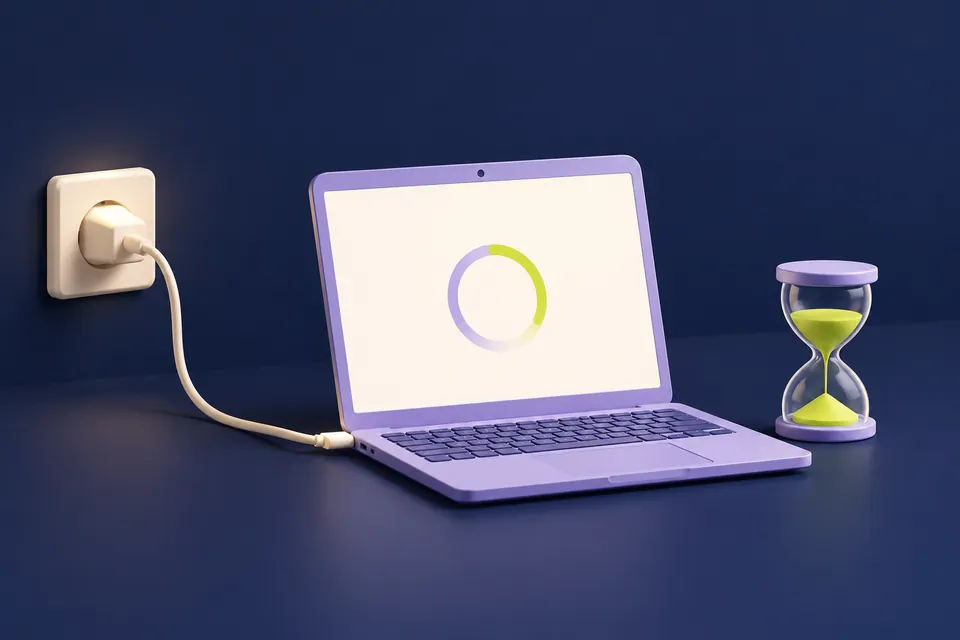
See this step — Identify the screenKeep power connected
Follow the on-screen instructions during installation.
See this step — Keep power connectedChoose help for that stage
Use official troubleshooting. Do not begin with random reset commands.
See this step — Choose help for that stage
A progress number has not moved, and every search result seems to suggest a different reset command. Before choosing one, identify where Windows is stuck. A download pending inside Settings, an installation waiting for a normal restart and a computer that cannot reach the desktop need different treatment. This guide focuses on Windows 11 and starts with observations you can make without deleting update files or interrupting an active installation. If the device is managed by work or school, use its support team before changing update policy or recovery settings.
The first useful check
Write down the exact screen, update name and error. If the desktop still works, save your work and use Windows' current update troubleshooting route. If installation is running during restart, follow the on-screen instructions and avoid an arbitrary forced power-off.
Which situation sounds like yours?
Desktop works; download is pending
Check connection, visible settings and storage messages.
Windows requests a normal restart
Save work and use the offered restart control.
Installation is running during restart
Maintain power and follow the displayed instructions.
Repeated startup or recovery failure
Use official recovery help for the exact device and error.
Step 01
Name the stage you can actually see
Look at the whole screen, not only the percentage. Are you in Settings with a responsive desktop? Does Windows say a restart is required? Or are you on a startup screen with instructions not to turn off the computer? Record the wording and whether the number or message changes. Photograph the screen if useful, but hide personal information before sharing it.
Record the update identifier or error code when one is visible. Also note the approximate start time and whether the computer is still responsive. Avoid inventing a precise failure time from a number that simply looks slow. Installation duration varies with the device and update. There is no universal minute at which every unchanged percentage becomes safe to interrupt.
Step 02
For a pending download, check the ordinary prerequisites
If you can use the desktop, save open work and check that the internet connection actually reaches websites. Review any visible update message about pausing, scheduling, connection settings or available space. Keep a laptop connected to suitable power. If storage is low, remove or move your own unnecessary files deliberately; do not delete unknown system folders to make a number turn green.
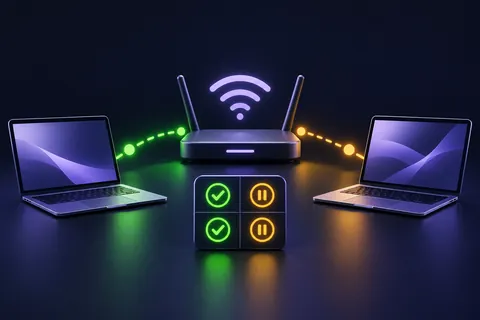
Make one relevant change and observe its effect. For example, restore the network connection before retrying a download. A work device may intentionally defer an update, so consult the organisation rather than overriding its policy. If several devices on the same connection are offline, the update screen is probably not the first problem to solve. The Wi-Fi guide linked below can help isolate that branch.
Step 03
Use the built-in troubleshooting route
Microsoft's current Windows guidance directs users to its update troubleshooter, including the Get Help experience where available. Start from Windows settings or Microsoft's official support page. Follow the prompts that match the displayed error. Keep the outcome, especially if the tool identifies a condition it could not fix, rather than immediately running an unrelated script from a forum.
If Windows requests a normal restart and the desktop is available, save work first and use the offered restart control. Do not confuse that with holding the power button during an installation. After returning to the desktop, inspect update status or history. A successful restart does not by itself prove that the particular update completed; the recorded update entry is the useful check.
Step 04
Treat a restart screen as a different situation
During installation outside the desktop, follow the screen's instructions and maintain power. A progress indicator may remain at one value while work continues. Do not apply a fixed countdown from an unrelated tutorial as permission to interrupt it. Firmware or manufacturer update screens need particular care and should be handled using the device maker's instructions.
If the machine appears genuinely unresponsive or repeatedly fails to start, use Microsoft's recovery guidance and the manufacturer's support for the exact device and symptoms. Record any recovery prompt or error. Before advanced recovery actions, make sure you understand their effect on files and settings and whether device encryption will require a recovery key. Guessing through recovery screens can turn a delayed update into lost access.
Step 05
Prepare before any advanced repair
When the desktop is available, check that important files have a usable backup before disruptive troubleshooting. Know where your device's recovery information is stored without posting it in a support forum. Keep the device model, Windows version and update identifier in the incident note. These details help distinguish a particular update issue from a storage, driver or startup problem.
Avoid beginning with commands that delete caches, alter services, disable protection or reset Windows. Some may be appropriate in a specific official procedure, but they are not interchangeable first steps. Read the scope and consequences of the procedure you are following. If the instructions do not match your screen or device, stop and get the right support rather than adapting commands by guesswork.
Step 06
Confirm the result and keep a small failure record
After a retry, check the status of the named update and whether Windows still requests action. Test the ordinary work you need from the device. If the same failure returns, note whether it occurs at the same stage and with the same code. Repeating an identical unsuccessful reset without recording the result provides little new evidence.
A useful support message includes the update identifier, stage, exact error, device model, available storage and the troubleshooting outcome. Leave out passwords and recovery keys. If an official known-issue notice matches the update and device, follow its current advice. Do not install an unrelated driver pack or buy a repair utility merely because its advert repeats the error code you searched for.
An example you can follow
The update was waiting for a connection
Illustrative example: Lee sees 'pending download' in Settings while the desktop remains responsive. A website also fails to load, although the Wi-Fi symbol is present. Lee resolves the connection problem and checks the update again. The useful observation was the stage: this was a download that could not obtain data, not a frozen restart installation. Deleting update folders or forcing the laptop off would have added risk without addressing the missing connection.
An update report support can use
Copy the visible values. Never include a BitLocker recovery key in a public report.
| Detail | What to record | Why it helps |
|---|---|---|
| Stage | Download, install, restart or recovery | Selects the right troubleshooting path |
| Identifier | Named update or KB entry | Makes the issue specific |
| Error | Exact wording or code | Avoids guessing from a percentage |
| Result | One action and what changed | Prevents repeated unsuccessful steps |
Questions you might still have
How long should I wait at one percentage?
There is no reliable universal cutoff. The stage, update and device matter; follow official instructions for the observed situation.
Should I delete SoftwareDistribution first?
Do not start with system-folder changes. Use the relevant official troubleshooting process and understand its effects.
Does this guide apply to every Windows version?
It focuses on Windows 11. Check current support and instructions for the version actually installed.
Sources & how this guide was made
Written by LoschaZ from the guidance below. The illustration is our own. Worked scenarios are labelled as illustrations; they are not customer stories or tests on every device. For product-specific steps, follow the current instructions for your device, account or item.