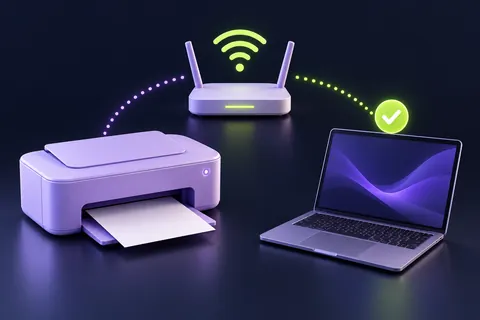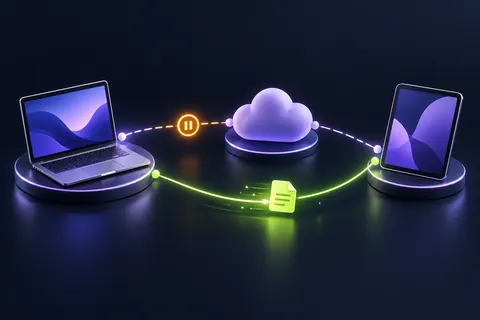
The first checks, in pictures
Start with these three checks. The pictures are simplified; the steps below explain the details.
Test a second device
Use the same Wi-Fi. See whether it can open a website.
See this step — Test a second deviceSeparate Wi-Fi from internet
A connection to the router does not prove that the internet works.
See this step — Separate Wi-Fi from internetCheck the right support route
If all devices fail, inspect the router and provider status.
See this step — Check the right support route
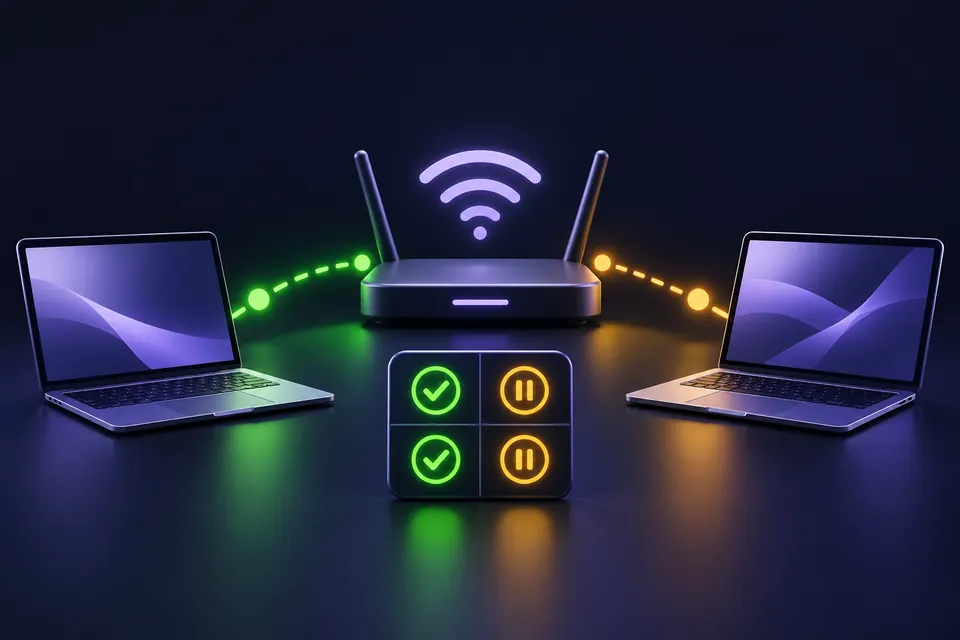
Your device has full Wi-Fi bars, but websites will not open. The bars describe the wireless connection to a nearby access point. They do not guarantee that the access point can reach the internet. A useful first move is to compare two devices and two ordinary websites. That small grid helps distinguish a single broken page, one device's problem and a wider connection outage. This guide walks through that comparison and the next sensible checks. It does not require an unfamiliar repair app, a paid optimiser or command-line changes you cannot undo.
The first useful check
Try two unrelated websites on two devices using the same intended network. Temporarily account for mobile data on a phone so it does not hide a Wi-Fi failure. Use the pattern of results to choose the next check.
Which situation sounds like yours?
Two devices fail on two sites
Check shared equipment and provider status.
One device fails on both sites
Inspect that device's network selection and troubleshooter.
One site fails on both devices
Investigate the specific service before resetting the network.
Phone works only on mobile data
Treat that as a different connection, not a Wi-Fi success.
Step 01
Make the first test meaningful
Choose two familiar, unrelated websites and try opening a fresh page on each. An already loaded page can remain visible without a working connection, so do not use that as your only evidence. Record the exact message if the browser shows one. A certificate warning, a sign-in requirement and a connection timeout are different problems; do not bypass a security warning simply to make the test pass.
Repeat on another device connected to the same intended Wi-Fi network. If you use a phone, remember that it may fall back to mobile data. Check the active connection or briefly disable mobile data for this test, then restore your usual setting afterwards. If the phone is using cellular service, its success does not prove that the household Wi-Fi has internet access.
Step 02
Read the pattern before changing settings
If both websites fail on both devices, the shared connection becomes the first place to investigate. If both work on one device but fail on the other, focus on the failing device. If only one website fails everywhere, the website or the path to that service may be the problem. These are starting points, not a complete diagnosis, but they prevent many irrelevant resets.
Write the results in the grid below. Keep the test conditions the same: same network, same websites and roughly the same time. Changing several conditions between tests makes the comparison weaker. If the failure is intermittent, add a time to each observation. A pattern such as 'every device loses access at the same moment' is useful when talking to your provider.
Step 03
Check shared equipment and known outages
Look at the router or modem's status indicators and compare them with its manual or provider guidance. Do not guess that every blinking light is an error. Check whether a cable was loosened during cleaning and whether the equipment has power. Inspect only accessible connections; do not open the device or handle damaged electrical parts. If the provider publishes an outage status, check it using a working connection.
A normal restart may be appropriate under the provider's instructions. Distinguish restarting from factory resetting: the reset button can erase network configuration and create a larger problem. If someone in the household is relying on the connection for a call or important task, agree on the restart first. After the equipment has completed its normal startup, repeat the same two-site test rather than assuming the lights prove success.
Step 04
Check one-device problems in a controlled order
Confirm the failing device selected the intended network rather than a remembered hotspot or guest connection. Check whether it is waiting for a legitimate network sign-in page, as can happen in hotels or public locations. Open only the expected network portal and avoid entering sensitive information into an unfamiliar prompt. On a workplace device, use the organisation's approved connection process.
For Windows 11, Microsoft's Get Help network troubleshooter is a reasonable next step. Read what it reports and record any persistent error. If a VPN or managed security configuration is involved, consult its normal status and support instructions. Do not disable protections or change corporate settings as a generic experiment. A comparison on a known working network can be useful when you are authorised to use it.
Step 05
Keep disruptive resets for a defined reason
Forgetting a network requires you to reconnect with the correct credentials, so make sure you can do that before trying it. A full network reset is broader: Microsoft notes that adapters and settings can be removed and that VPN or virtual-network software may need to be set up again. That makes it a later step, not the first response to a single failed website.
If official troubleshooting directs you to a reset, save the information needed to restore the intended setup and follow the instructions for your operating-system version. Avoid copying a list of commands from an unrelated device or old forum post. After each meaningful change, repeat the original comparison. Stop when you have a working connection and can explain which condition changed.
Step 06
Give support a useful report
If the problem remains, collect the start time, whether all devices are affected, the router's documented status and the two-site comparison. Include a recurring error code exactly as displayed. Do not send your Wi-Fi password, private browsing history or screenshots containing unrelated account information. A concise description helps support distinguish a local device issue from a provider fault.
Once service returns, test the task that originally failed: a call, upload or work application, not just a browser homepage. Some services may need to reconnect after an outage. Keep the comparison grid for next time. It is a cheap diagnostic aid precisely because it uses devices and websites you already have, rather than asking you to buy something before you know what failed.
An example you can follow
The phone was quietly using mobile data
Illustrative example: Lee believes the laptop is the only broken device because the phone opens websites. Checking the phone reveals that it has switched to mobile data. With that fallback temporarily excluded, both devices fail on the home Wi-Fi. The provider's status page, checked over mobile data, reports an outage. Lee leaves the laptop settings alone and uses an available alternative connection for the immediate task. The comparison prevents an unnecessary factory reset that would not repair the provider's outage.
Two devices, two websites
Use fresh pages on the same intended Wi-Fi network. Note any mobile-data fallback.
| Device | Website A | Website B |
|---|---|---|
| First device | Opens / error | Opens / error |
| Second device | Opens / error | Opens / error |
| Time / network | Record here | Record here |
Questions you might still have
Why are the Wi-Fi bars full if there is no internet?
They describe the radio connection to the access point. The access point's onward connection can still fail.
Should I press the router's reset button?
Check the manual. A factory reset is different from a normal restart and may erase settings needed to reconnect.
Does the same problem on two devices prove my provider is at fault?
No. It points towards a shared part of the connection, which can include the router, modem or provider. Check each with its documented status information.
Sources & how this guide was made
Written by LoschaZ from the guidance below. The illustration is our own. Worked scenarios are labelled as illustrations; they are not customer stories or tests on every device. For product-specific steps, follow the current instructions for your device, account or item.