The short answer
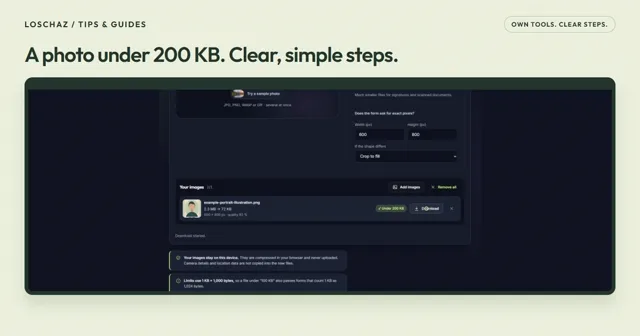
Choose the permitted format and limit in Image Compressor, test a few different pictures and inspect the results. Add the remaining group, read each failure notice and use “Download all (ZIP)”. Extract into a separate output folder and compare against a source list.
Open the free toolGroup files by the job they need to do
Do not begin by selecting the whole camera roll. Decide which pictures share a destination and its requirements. A fictional club newsletter might need small event photos, while an application form needs one portrait with fixed pixels. Those tasks should not automatically share settings just because both involve JPG. Read the actual permitted format, weight and dimensions for each group. No example here establishes a rule for a particular service.
Create a simple source list before processing. Filenames and a short description can help distinguish similar photos. Keep the originals in their own folder and prepare a separate destination for the compressed outputs. That separation prevents an extracted archive from overwriting your only sources. If several people supplied pictures with identical names, resolve the ambiguity in a controlled working copy before assuming a filename alone identifies each image. Count the intended pictures, including any that need a different treatment.
Try representative pictures before the whole group
Pick a few images that reveal different problems. An illustrative trial could contain a face, fine foliage and a photograph with small writing. These are suggested subjects, not measured test results. The smoothest image in a collection is a weak guide to its hardest item. Open the trial results and compare the features that matter to the job. A good landscape does not prove that a sign or a portrait remains useful.
If some images fail at the chosen settings, separate them instead of making every file worse to suit one difficult case. A document photograph and a decorative landscape can tolerate different compromises. A cleaner source, permitted crop or different destination may be needed for the difficult item. Keep that decision in your list so it is not forgotten when the successful results are packed. A mixed success message should lead to a review, not an assumption that every selected source became an acceptable output.
Choose settings common to this group
Use “Size limit” for the destination’s ceiling and “Format” for its accepted file type. The target is a maximum, not a request to fill every image to exactly the same byte count. Do not choose WebP solely for weight if the recipient accepts only JPG. A renamed extension does not convert the contents. All pictures in a group should be suited to the chosen format before batch processing makes the consequences harder to spot.
Leave exact pixels empty if the destination does not require them. When width and height are fixed, examine the fitting decision for each source shape. A portrait and a wide scene can lose different important regions under a centered crop. White fitting can preserve the whole picture but add borders. Neither method is universally right. The batch operation does not understand which face, word or object may be removed. Split the collection when the same dimension choices cannot serve its varied subjects sensibly.
Run a manageable amount of work
The application accepts up to 100 selected images, but that count is not a capacity guarantee for every device. Large originals consume memory while decoding and processing. On a limited phone, start with smaller groups. Save a successful group before continuing so a later problem does not leave all progress dependent on one open tab. Keep the source list marked with completed, failed and still-unchecked items in your own organization.
Read per-image cards as well as the overall status. A file may be unsupported, inaccessible or unable to meet the limit with fixed dimensions. Those causes need different responses. A HEIC decoder problem is not fixed by lowering the target, and a missing file entry is not proof of excessive weight. Retry from the genuine source after addressing the cause. Do not repeatedly add failed items to a new batch without checking whether you already have a successful output for the same picture.
Download and extract into a separate place
Use “Download all (ZIP)” when the outputs you need are ready. Confirm that the browser saved the archive, then extract it into the planned output folder. The ZIP is a package, not automatically the format a receiving form accepts. A photo field may require an individual JPG instead. Do not upload the archive merely because it was the most convenient download option.
Compare extracted files with the intended source list. Count them, identify errors and open representative outputs. Also inspect every picture with special requirements, such as a readable label or exact dimensions. A ZIP that opens successfully proves only that you can read that archive, not that every image is suitable. If another archive is created after a correction, keep its version clear. Mixing old and new extracted files can hide which pictures still belong to a rejected attempt.
Make a clear handover
Tell the receiving person what the folder is prepared for and which images, if any, remain unresolved. This is a suggested handover note, not an automated reporting feature in Image Compressor. Keep the agreed final set separate from experiments. If the recipient needs individual images rather than the ZIP, provide the intended files without making them sort through sources and repeated outputs. Review visible personal information before sharing the set.
The tool processes images locally and writes new pixel-based files without camera or location metadata. Visible faces, names and text remain in the pictures. Local processing also does not create a lasting result archive after closing. Save the outputs you need and preserve originals for another destination. If a new request changes the ceiling, work from those sources with the new requirements rather than compressing the previous small copies again. Your source list then provides a clear starting point for the next controlled batch.
Questions you might still have
Must all photos end up at the same byte count?
No. A ceiling is a maximum. Different images can have different saved weights while meeting it.
Can one fixed crop suit every picture?
Not necessarily. Split portraits and wide scenes when the same dimensions remove important content.
Does 100 images mean every device can process that many?
No. Memory and source size matter. Use smaller groups when needed.
Is a ZIP ready for every photo field?
No. Extract individual files when the destination expects images rather than an archive.
Should I count files after extraction?
Yes, then compare against the intended list and review errors. A readable archive is not proof of complete suitable output.
Does metadata removal hide visible names?
No. Information printed in the image remains in its pixels.
Sources & useful details
- Apple: HEIF and HEVC media; checked 2026-10-22
- Image Compressor: official product page; checked 2026-10-22
These guides are written from the current LoschaZ tools and the sources listed above. Examples are illustrations, not tests on every device or promises of an identical result.