The short answer
Open Image Compressor, keep JPG as the format and choose a size limit: 1 MB for sharing, or type 5000 into “Other limit in KB” to keep almost all detail. Add your HEIC photos, then download each JPG or all of them as a ZIP.
Open the free toolSee the steps in action
A short recording of our tool, without sound. Turn on captions for the steps in your language. The written instructions below cover the same process.
Open or download the video · 0.2 MB · 16.63 s
Each step is also explained in writing.
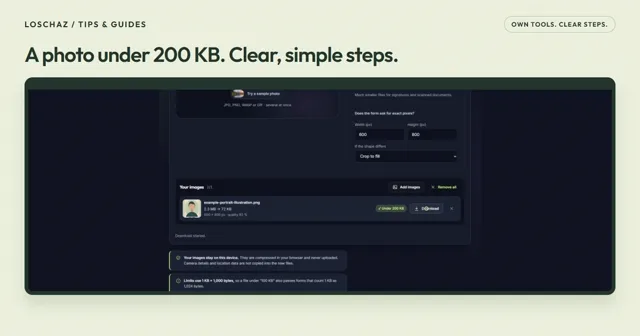
- Choose the 1 MB size limit and keep JPG as the format.
- Add the example iPhone photo. It is a HEIC file.
- The tool reads the HEIC photo on this device and makes a JPG.
- Check the new size, the pixel size and the green badge.
- Download the JPG. It opens on almost any computer and phone.
Try the sample fileOur own sample. No personal data.
Why your photo is a HEIC file
HEIC is the photo format iPhones use by default, and many Android phones offer it as a “high efficiency” option. It stores the picture with the same compression family as modern video, so a HEIC file is usually much smaller than a JPG of similar quality.
The catch is support. Websites, upload forms, older Windows programs and many office tools still expect JPG. When a HEIC file does not open, the photo is fine; the program simply cannot read the format. A JPG copy is the most widely accepted way to share it.
Convert HEIC to JPG in four steps
Choose the format and a limit
Keep “JPG” under “Format”. Under “Size limit”, choose “1 MB” for email and messengers. To keep almost all detail, type 5000 into “Other limit in KB” instead.
Add your photos
Select “Choose images” and pick one or several HEIC files. The tool reads them in your browser; nothing is uploaded. Up to 100 photos can be added in one go.
Check each result
Every photo gets a card with the new file size, the pixel size and a green badge when it fits your limit. The picture is turned upright automatically, as your phone shows it.
Download
Select “Download” on a card, or “Download all (ZIP)” for every photo at once. Your original HEIC files stay unchanged.
Keep the quality you need
The size limit decides how much detail stays. For a phone screen or an email, 1 MB is usually plenty. For printing or editing, set a generous limit such as 5000 KB; the tool then uses its highest quality and keeps the original pixel size up to 4,096 pixels on the long side.
Do not be surprised if the JPG is larger than the HEIC file. That is normal: JPG needs more bytes for the same picture. In our recorded example, an 815 KB HEIC photo became a 995 KB JPG with 2,048 × 1,536 pixels.
Which browsers can read HEIC
Safari opens HEIC by itself. In Chrome and Edge, the tool uses its own HEIC reader together with the device’s video decoder, which works on most current computers and phones. If a browser cannot decode the photo, the tool says so instead of failing silently; then open the page in Chrome, Edge or Safari.
- Live Photos: only the still picture is converted; the short video part stays on your phone.
- Very large 48-megapixel photos are scaled to 4,096 pixels on the long side.
- Screenshots on an iPhone are already PNG files and need no conversion.
Avoid HEIC for future photos
On an iPhone, open Settings › Camera › Formats and choose “Most Compatible”. New photos are then saved as JPG, at the cost of more storage. Photos you already took stay HEIC, so convert those with the steps above.
If you copy photos to a computer with a cable, Settings › Photos › “Transfer to Mac or PC” set to “Automatic” lets the iPhone hand over compatible JPG copies. On Windows, Microsoft’s HEIF and HEVC extensions from the Microsoft Store can display HEIC directly; one of them may cost a small fee.
Questions you might still have
Is converting HEIC to JPG really free?
Yes. Image Compressor is free, has no account and no watermark. The conversion runs in your browser, so there is also no upload limit beyond your device’s memory.
Do I lose quality when converting?
Every JPG conversion recompresses the picture, but with a generous limit such as 5000 KB the difference is not visible at normal viewing size. Avoid converting the same photo several times; always start from the original HEIC.
Can I convert many photos at once?
Yes. Add up to 100 photos in one go and use “Download all (ZIP)” to save them together.
Sources & useful details
- Apple Support: Using HEIF or HEVC media on Apple devices
- MDN: Image file type and format guide
- Microsoft Store: HEIF Image Extensions
The screen recordings show LoschaZ tools using sample files created for these guides. They are demonstrations, not tests on every phone or promises of an identical result. Examples are not customer files.