The short answer
Copy the text out of the picture first, then translate it. Paste a screenshot into our AI Text Scanner, pick the language the text is written in, copy the result and paste it into the translator you trust. On a phone, Live Text and Google Lens can also translate in one step. Check names, numbers and line breaks before you rely on the result.
Open the free toolHow does translating text from an image work?
Translating text from an image is two jobs. First, text recognition (OCR) reads the letters in the picture. Then a translator turns those words into another language.
Some apps do both in one tap, which is quick. But you do not see what was read, so one misread letter can become a wrong word in the translation. Doing it in two steps lets you check the text in between.

How to copy text from a screenshot
Take the screenshot, paste it into a text scanner and copy the text it finds. The screenshot page of the AI Text Scanner is set up for exactly this.

Take the screenshot
Windows: press the Windows logo key + Shift + S. Mac: Control-Shift-Command-4 copies the area you drag to the clipboard. iPhone: side button and volume up together. Android: Power and Volume down together.
Paste it
Open the scanner and press Ctrl+V (Cmd+V on a Mac), or use the “Paste screenshot” button if your browser shows it. On a phone, press “Choose images” and pick the screenshot from your photos.
Pick the language of the text
Under “Text language”, choose English, German, French or Spanish: the language the text is written in, not the one you want to read it in.
Mark the part you need
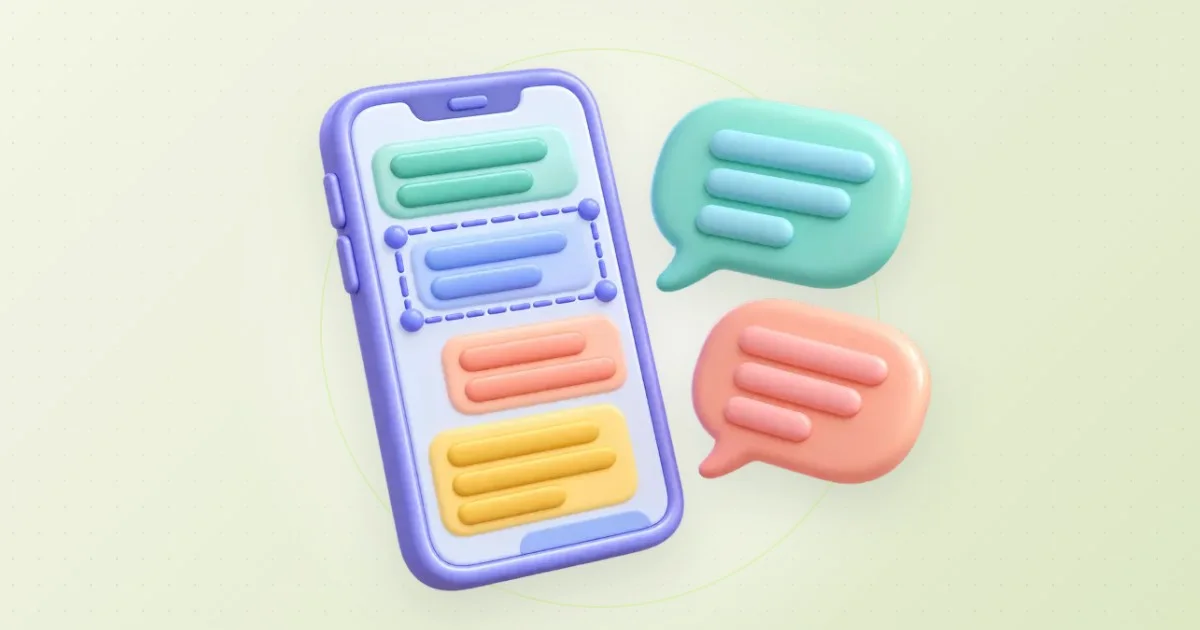
Drag across the lines you want, for example two messages in a chat. On a touch screen, tap “Select part” first. Press “Read text”, then “Copy text”.
Copy text from a screenshot on Windows, iPhone and Android
Each of them has a built-in way, and Macs do too. These are quick for a few words.
- Windows 11: take the screenshot with Snipping Tool, open the snip and select the “Text actions” button. Then select the words, or choose “Copy all text”. Microsoft says this text recognition runs on your device.
- iPhone: open the screenshot in Photos and tap the text button in the corner (the Detect Text button in Apple’s current guide, the Live Text button in an older article). Touch and hold the text, then tap “Copy Text”.
- Android: open the Google app, tap the Lens icon in the search bar, tap “Search” and pick the screenshot under “Screenshots”. Tap the text, tap “Select text”, then “Copy”.
- Mac: open the screenshot in Preview, drag across the text, Control-click and choose “Copy Text”.
How to translate the extracted text into English
Paste the text into a translator you trust, set English as the target language, and keep the original next to the result. The same works for any other target language.
Clean up the text first
In the scanner, fix any misread words and turn on “Join broken lines”, so each sentence is in one piece. Then press “Copy text”.
Paste it into a translator
Open the translation website or app you already use, such as Google Translate, and paste the text.
Set the two languages
Choose the language of the text, or let the translator detect it. Then choose English, or the language you need, as the target.
Read it side by side
Keep the original visible while you read the translation. If a sentence makes no sense, look at the original line: a misread letter is often the cause.
Image to text translator on your phone: Live Text, Lens and Translate
If you only need the meaning quickly, for a menu or a sign, your phone can read and translate in one go.
- iPhone: open the photo, tap the Live Text button (called the Detect Text button in Apple’s current guide), then “Translate”. You might need to tap “Continue” and choose a language first.
- Android with Google Lens: open the Google app, tap the Lens icon, and under “Search with your camera” tap “Translate”. Take a photo, or pick one under “Screenshots” or “All images”, and choose the languages in the language menu.
- Google Translate app on Android: tap “Camera”, point at the text and tap the shutter button, or tap “All Images” to use a photo you already have. Google says camera translations also work offline for languages you have downloaded.
- Mac: in Preview or Photos, select the text, Control-click, choose “Translate” and pick a language.
What to check after you translate text from an image
Check the parts a machine gets wrong most easily: names, numbers, line breaks and short words without context.
- Names: a family name, a street or a product can be translated as if it were an ordinary word. Compare every name with the original.
- Numbers and dates: compare them digit by digit. 03/04 is March 4 in the US and 3 April in the UK, and 1.500 can mean one and a half or fifteen hundred.
- Prices and units: check the currency and the unit, not just the number.
- Line breaks: a sentence split over two lines can come out as two half-sentences. Join the lines before you translate.
- Short texts: a menu item or a sign has no context, so the translator has to guess, and one word can have several meanings.
- Accents: if letters such as é, ü or ñ are missing, the wrong scan language was probably selected. Read the picture again with the right one.
Questions you might still have
Can the AI Text Scanner translate the text?
No. It reads printed text in English, German, French or Spanish and gives it to you as text. Paste that text into the translator you trust.
How do I translate a picture to English?
Read the text with the language of the picture selected, copy it, and paste it into a translator with English as the target. On a phone, Live Text and Google Lens can also translate a photo directly.
Which languages can the scanner read from a screenshot?
English, German, French and Spanish, one at a time. The language file loads the first time you use it, and your browser keeps it for next time. For text in other languages, try Google Lens or the Google Translate app.
Is it safe to translate a private screenshot?
The scanner keeps the picture and the text on your device. The translator you paste into does receive the text, so remove names, phone numbers or account details you do not need first.
Why does the translation break sentences apart?
Because the text keeps the line breaks of the picture. Turn on “Join broken lines” before you copy: it joins the lines inside a paragraph and repairs words split by a hyphen at a line end.
Do I need to install an app to copy text from a screenshot?
No. Windows 11 has Snipping Tool, iPhone and Mac have Live Text, and Android phones with Google Photos or the Google app can use Google Lens. The AI Text Scanner runs in your browser, so there is nothing to install either.
Sources & useful details
- Apple Support: Copy and translate text from photos on your iPhone or iPad (Live Text button, Translate); checked 2026-10-27
- iPhone User Guide: Interact with content in a photo or video (Detect Text button, Copy Text); checked 2026-10-27
- Google Search Help: Region selection in Lens on Android (Select text, Copy, Translate, Screenshots); checked 2026-10-27
- Google Translate Help: Translate images on Android (Camera, All Images, offline languages, accuracy depends on clear text); checked 2026-10-27
- Microsoft Support: Use Snipping Tool to capture screenshots (Text actions, Copy all text, recognition on your device); checked 2026-10-27
- Preview User Guide for Mac: Interact with text in a photo using Live Text (Copy Text, Translate); checked 2026-10-27
- Apple Support: Take a screenshot on your Mac (Control-Shift-Command-4 copies to the clipboard); checked 2026-10-27
- Apple Support: Take a screenshot on your iPhone; checked 2026-10-27
- Android Help: Take a screenshot or record your screen (Power and Volume down); checked 2026-10-27
- LoschaZ AI Text Scanner: screenshot to text with paste
- LoschaZ guide: how to extract text from an image on any device
- LoschaZ guide: turn a scanned document or PDF into text
These guides are written from the current LoschaZ tools and the sources listed above. Examples are illustrations, not tests on every device or promises of an identical result.