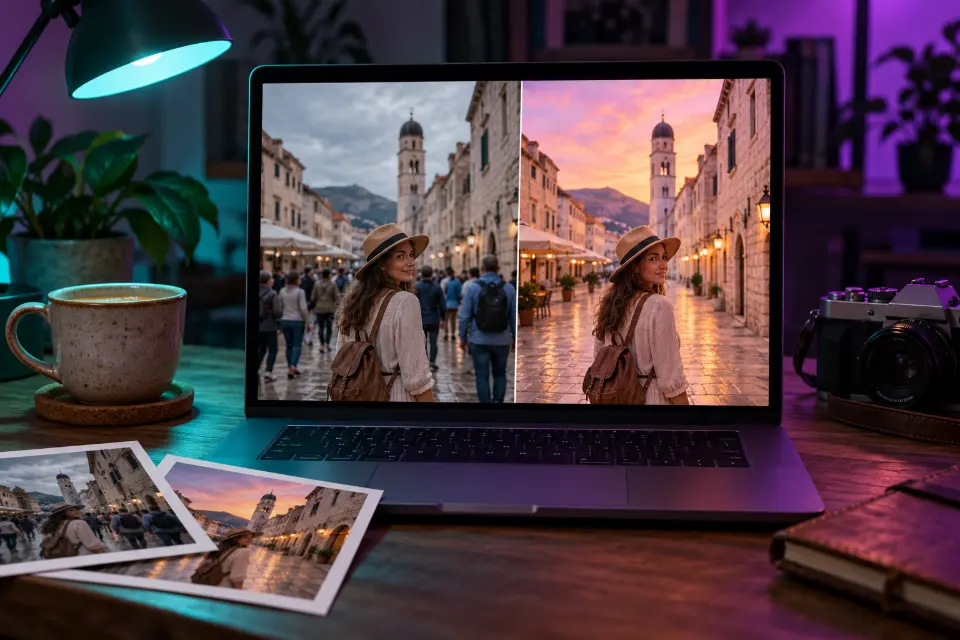
ChatGPT photo editing means uploading a picture and describing the change in words, and the prompts below cover everyday fixes: strangers in the background, dark or flash-blasted shots, a dull sky, glare on glasses or a caption to add. Each prompt starts with what must stay the same, so your face and the moment survive the edit.
Every prompt has a note on why it works and what to swap, and words in square brackets are placeholders. To create a new picture from scratch instead, start with the ChatGPT image prompts.
The short answer
Upload your photo in a new ChatGPT chat, paste one prompt and replace the bracketed words. If anything besides the requested change looks different, reply “Keep everything else exactly as in my original photo”, or start again from the original.
How does ChatGPT photo editing work?
You upload a photo, describe the change and ChatGPT returns a new version made with GPT Image 2. It doesn’t move sliders like a photo app: it redraws the picture, which is why your wording decides how much of the original survives.
- Open ChatGPT on the web or in the app and start a new chat.
- Tap the plus button and add one photo, the sharper the better.
- Paste a prompt from this page and replace the words in square brackets.
- Compare the result with the original at full size, especially faces, hands and text.
- Ask for small corrections in the same chat, one at a time.
How do you edit a photo in ChatGPT without face change?
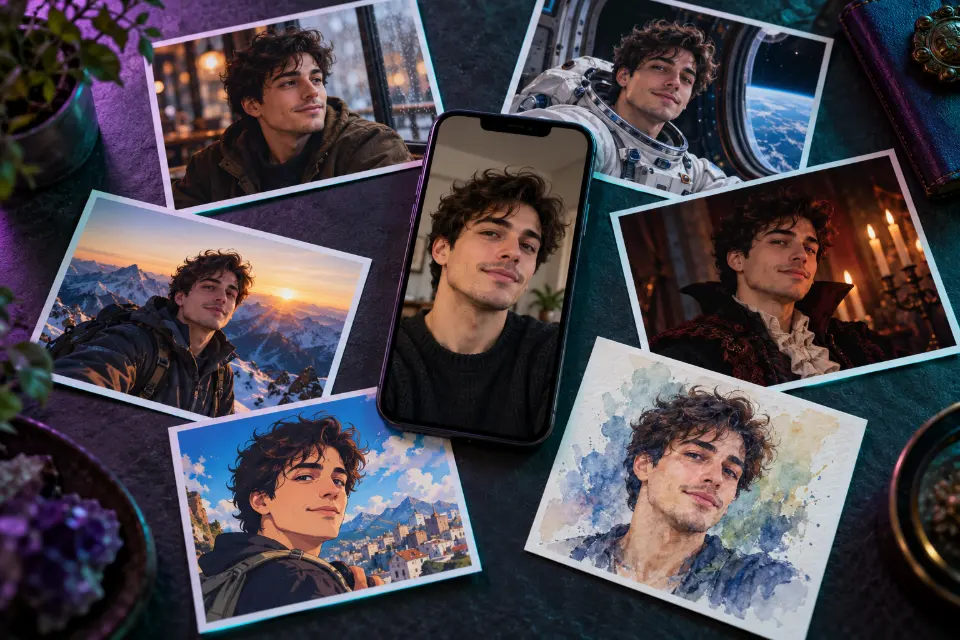
Start every prompt with what must stay: “Keep my face, expression, pose and clothes exactly the same.” Then name the one change you want, and finish with how the light should look. A specific keep list works better than a vague “don’t change anything”.
Use a sharp, well-lit photo where the face is large in the frame, since small, blurry faces are the ones that get redrawn. When an edit goes wrong, go back to the original photo instead of editing the edited version, because small drifts add up with every round.
ChatGPT photo editing prompts as text: what to copy and what to change
Many searches ask for the prompt text itself, ready to copy and paste. Every prompt below is plain text you can paste straight into ChatGPT. Change the parts in square brackets, then any detail that doesn’t match your picture, such as “the trash can on the right”. A prompt written for someone else’s photo describes their scene, so a few seconds of adjusting saves a wasted try.
The same prompts sit as cards in Prompt Studio, where you can switch the model and the wording adapts to it.
13 prompts to copy and adapt
Remove strangers from the background
Keep me, my pose, my face and my clothes exactly as they are. Remove the other people walking behind me and fill the space with what would naturally be there: the same street, pavement and buildings, continuing the existing lines and textures. Keep the original light, colors, perspective and depth of field. Do not change anything else in the photo.“What would naturally be there” stops ChatGPT from inventing a new scene. If someone survives the edit, name them by position, such as “the man in the red jacket on the left”.
Brighten a dark indoor photo
Keep every face, expression and object exactly the same. This photo was taken indoors in dim light and is too dark. Brighten it so it looks like a well-lit room in the evening: lift the shadows, recover detail in dark hair and clothing, reduce the grainy noise and correct the yellow cast to neutral white. Keep it natural, with no glow and no HDR look.Naming the kind of light you want works better than “make it brighter”, which often turns everything flat and gray.
Soften a harsh flash photo
Keep all faces, expressions and poses exactly as they are. The on-camera flash made this party photo harsh: shiny foreheads, hard shadows on the wall and a black background. Reduce the shine on skin, soften the shadow behind the people, bring back some warm ambient light from the room behind them and keep natural skin texture. Same framing, same moment.Describing what went wrong helps ChatGPT fix the right things. Drop the ambient light sentence if the room should stay dark.
Turn harsh midday sun into golden hour
Keep my face, expression, pose, clothes and the location exactly the same. The photo was taken at noon with harsh overhead sun. Relight it as if it were taken an hour before sunset: warm, low light from the [left or right], soft shadows, a gentle glow on my hair and shoulders and a slightly warmer sky. No change to the background objects.Choosing the direction of the light makes the result believable. Pick the side where the sun could plausibly sit in that place.
Swap a gray sky for a sunset
Keep the landscape, buildings, people and their positions exactly as they are. Replace the flat gray sky with a soft sunset sky: scattered pink and orange clouds fading to pale blue at the top. Adjust the light on the scene to match, with warm highlights on surfaces facing the sun and slightly deeper shadows. Keep the edges around trees and rooftops clean.Branches against the sky are where swaps look cut out, hence the last sentence. Ask for “clear blue sky with a few clouds” for a daytime version.
Remove wires and clutter from a travel photo
Keep the scene exactly as it is, including the people, buildings and colors. Remove only these distractions: the power lines across the sky, the trash can on the right and the parked scooter in front of the door. Fill each area with matching background, continuing the brick, sky and pavement textures. Do not add new objects.A short, specific list beats “remove distractions”, which may take away things you wanted. Replace the three items with whatever bothers you in your photo.
Declutter a room for a listing photo
Keep the room, furniture, walls, windows and floor exactly as they are, from the same camera angle. Remove the clutter: cables, shoes on the floor, papers on the table, clothes on the chair and items on the kitchen counter. Make the bed neatly with the same bedding. Keep the real light from the windows and the true colors of the room.Handy for rental or sale listings, as long as the room itself stays honest. Never remove damage or features a buyer or tenant needs to see.
Extend a wide photo to fit a story
Keep the original photo exactly as it is in the center, including every person and detail. Extend the image upward and downward to a vertical 9:16 format for a phone story. Continue the scene naturally: more sky and treetops above, more ground and path below, with the same light, colors, grain and perspective. Do not move or resize the people.“Do not move or resize the people” keeps the original intact. Ask for 4:5 instead of 9:16 for a feed post.
Remove glare from glasses
Keep my face, eyes, eye color, expression and glasses frames exactly the same. Remove the bright reflections on the lenses so my eyes are clearly visible behind clear glass, leaving a very faint natural reflection so they still look like real glasses. Do not change the shape of my eyes or the position of the frames.The faint reflection keeps the lenses believable. If your eyes look different, start again from the original rather than correcting the edit.
Classic black-and-white conversion
Keep the photo exactly as it is: same people, faces, pose and framing. Convert it to a classic black-and-white photograph with a full tonal range, deep but detailed blacks, clean whites and gentle contrast on skin. Add a fine, even film grain and a subtle darkening at the corners. No color tint.“Full tonal range” avoids the flat gray look of a simple desaturation. For a moodier version, ask for higher contrast and darker shadows.
Change the words on a sign in your photo
Keep the photo exactly the same, including the people, the light and the café front. Change only the writing on the chalkboard sign on the left so it reads “[your text]” in white hand-drawn chalk letters, matching the size, angle and texture of the original writing, with a little chalk dust. Spell it exactly as written.Short text in quotes comes out right far more often than a long sentence. Keep it for fun or your own shop, never for faking a real notice.
Add a handwritten caption
Keep the photo exactly as it is. Add a short caption in the empty area at the bottom: “[your caption]” in white handwritten script, slightly tilted, with a soft shadow so it stays readable on any background. Leave a small margin from the edge and do not cover any faces.Saying where the text goes and that it must not cover faces saves a second try. Type the caption exactly as you want it spelled.
Turn a summer photo into a winter scene
Keep the people, their faces, poses and the composition exactly the same. Change the season to winter: a light layer of fresh snow on the ground, roofs and branches, bare trees, a pale overcast sky, soft cold light and a few falling snowflakes. Dress the people in warm coats and scarves in colors close to their current clothes.Clothing colors close to the original keep people recognizable at a glance. A quick way to turn a summer photo into a holiday card.
Are trending ChatGPT photo editing prompts worth copying?
Trending prompts on Instagram and TikTok are mostly style makeovers: dramatic portraits, cinematic rain, new outfits, 3D figures. Many work, but they are written for one person’s photo and often ask for a new outfit, background and mood at once, which is exactly when faces drift.
Before you paste one, check that it starts with a keep sentence and remove details that don’t fit your picture. Skip trend prompts that put you next to a celebrity: such edits can mislead people, and ChatGPT may refuse them anyway.
Quick fixes when a ChatGPT edit goes wrong
Change one thing per message and say what should stay.
- The face changed: start again from the original photo with the keep sentence first.
- It changed more than you asked: end the prompt with “Do not change anything else in the photo.”
- The edit looks pasted on: ask it to match the light direction and colors of the original.
- Text is misspelled: shorten it, keep it in quotes and ask it to fix only the lettering.
- Fine detail looks soft: the result is a new rendering, so keep your original for large prints.
Is it okay to edit photos with ChatGPT?
For your own pictures, yes, with common sense. Ask before you edit and share a photo of someone else, and don’t use edits to mislead: a listing should show the real room, and an edited photo should never pass as evidence of something that didn’t happen. OpenAI’s rules also restrict some edits, such as explicit content and certain changes to images of real people. If a prompt is refused, rewording it rarely helps, so pick a different edit.
Which ChatGPT photo editing prompt fixes your problem?
| The problem | Prompt to use | Tip |
|---|---|---|
| Strangers in the background | Remove strangers from the background | Name leftovers by position |
| Too dark or grainy | Brighten a dark indoor photo | Describe the light you want |
| Shiny faces from flash | Soften a harsh flash photo | Keep the room dark if you like |
| A dull gray sky | Swap a gray sky for a sunset | Check edges around trees |
| Doesn’t fit a story | Extend a wide photo to fit a story | Use 4:5 for feed posts |
Questions and answers
Is ChatGPT photo editing free?
It depends on your plan. OpenAI decides how many image edits each plan allows and changes those limits over time. The prompts on this page cost nothing to copy and change.
What is a good prompt for ChatGPT photo editing?
One that says what to keep, names one change and describes the light. For example: “Keep my face, pose and clothes exactly the same. Replace the background with a quiet beach at sunset and match the warm light on my skin.”
Can ChatGPT edit only part of a photo?
Name the area precisely, such as “only the sky” or “only the sign on the left”, and end with “do not change anything else”. ChatGPT still redraws the whole image, so compare the untouched parts with your original.
Can I use these as Gemini or other AI photo editing prompts?
Yes. They are plain sentences that Nano Banana in Gemini, FLUX.2 and Adobe Firefly also understand. Each prompt lists the models it suits, and Prompt Studio adjusts the wording when you switch.
Why does my edited photo look slightly different overall?
ChatGPT generates a new image from your photo instead of changing pixels in place, so colors, small textures and background details can shift a little. A clear keep list and one change per message keep those shifts small.
Does ChatGPT keep the photos I upload?
Uploads fall under OpenAI’s privacy policy and your account settings. ChatGPT’s data controls let you choose whether your content may be used to improve models. Don’t upload photos of other people without their permission.