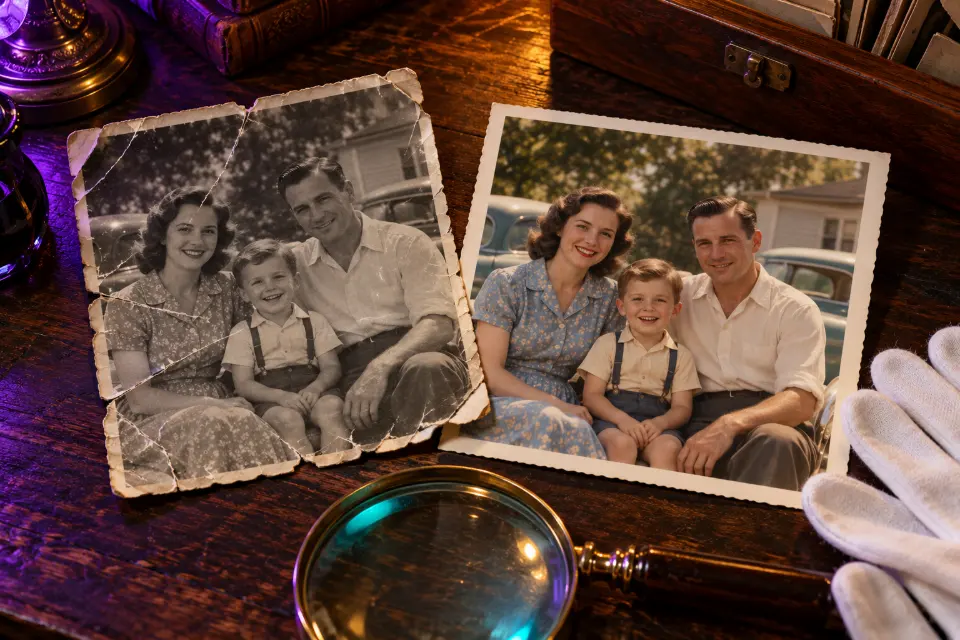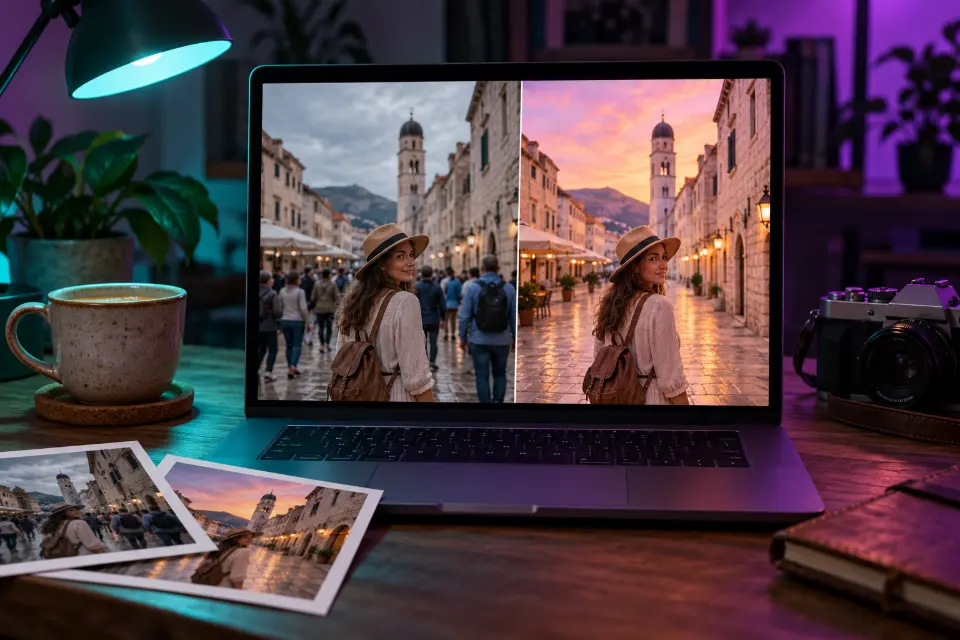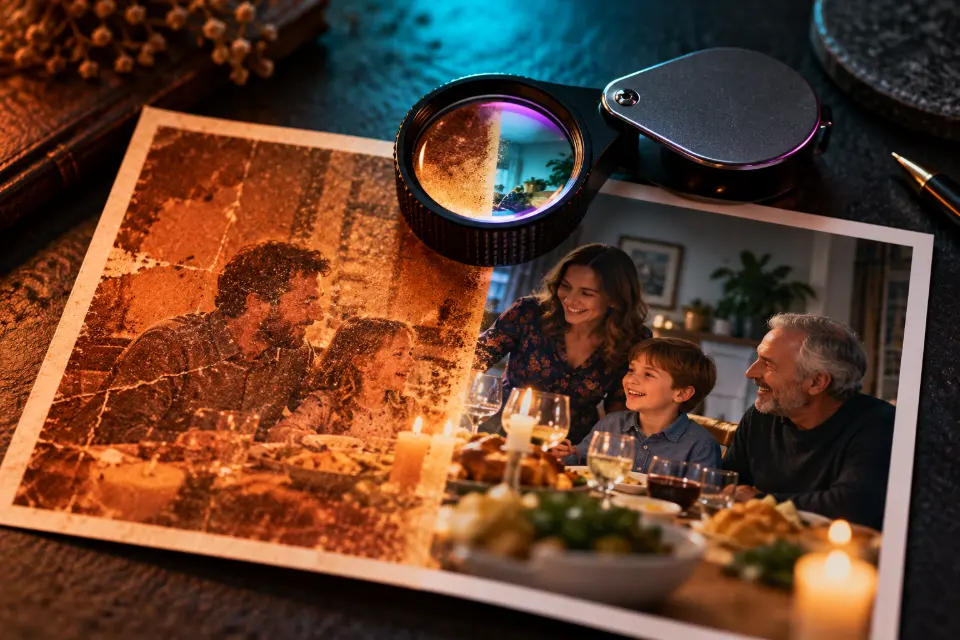
An AI prompt to enhance image quality has a job that sounds simple and is not: make the photo sharper, cleaner and better lit while every face, letter and object stays the same. Image models such as Nano Banana 2 in Gemini and GPT Image 2 in ChatGPT do not sharpen pixels the way a classic filter does. They redraw the picture, and a vague “make it HD” gives them permission to redraw the person too.
The thirteen prompts below each target one problem, such as motion blur, a dark restaurant shot or a heavily compressed image from a group chat, and each starts with what must not change.
The short answer
Upload the photo in Gemini or ChatGPT, pick the prompt that matches the problem and paste it unchanged. Compare the result with the original at full size, face by face, before you keep it.
Can AI improve the quality of a photo?
Yes, within limits. A generative model can remove noise, fix white balance, restore crisp edges and fill in plausible texture in hair, fabric and leaves. What it cannot do is recover detail the camera never captured. When a face is only a few pixels wide, the model invents one, and the invented face can look sharp and still not be the person you photographed.
That makes AI enhancement useful for sharing and printing everyday snapshots, and the wrong tool for anything that must stay factual: documents, evidence, insurance claims or ID photos.
How to enhance image quality with a prompt
Write the prompt in this order and keep each part short. Starting with the keep list makes the priority clear before any change is requested, and naming the problem stops the model from “improving” things that were fine.
- What must stay: the people, their faces and expressions, any text, the composition.
- What is wrong: blur from movement, grain from low light, blocky compression, a yellow cast from indoor bulbs.
- What to do about it: remove noise, sharpen edges, correct color, keep natural skin texture.
- One line on output, such as “same framing as the original”.
Does an enhance photo 4K prompt make a real 4K file?
Not necessarily. Each app returns images at the sizes it supports, and writing “4K” changes the look more than the pixel count. Stacked quality words like “8K, ultra detailed, masterpiece” mostly push the result toward an over-sharpened, glossy finish. Check the width and height of the downloaded file. If a print needs more pixels, enhance first, then enlarge the result with a dedicated upscaler that adds pixels without redrawing the content.
13 prompts to copy and adapt
General cleanup that changes nothing else
Enhance this photo without redrawing it. Keep every person, face, expression, hairstyle, piece of clothing, object and the framing exactly as they are. Reduce noise, sharpen soft edges, correct the white balance and exposure, and keep natural skin texture with pores and small marks visible. Output a cleaner, higher-resolution version of the same photo.“Without redrawing it” sets the tone for the whole edit. Use this as your default and switch to a specific prompt below if one problem remains.
Dark restaurant or party photo
This photo was taken in a dim restaurant and is grainy and orange. Keep all faces, expressions, the table setting and the background exactly as they are. Remove the color noise and grain, balance the warm cast toward natural skin tones, lift the shadows slightly without making it look like daylight, and keep the candles and lamps as the light sources.“Without making it look like daylight” keeps the evening mood. Delete it if you want a brighter, flatter result.
Slight motion blur from a moving child or pet
Reduce the slight motion blur in this photo of [my dog running on the beach]. Keep the subject’s shape, markings, expression and position exactly as they are, and keep the background as it is. Sharpen outlines and fine detail where the blur is mild, and leave areas soft where real detail cannot be recovered instead of inventing new features.Heavy blur cannot be undone, and asking the model to leave it soft prevents a strange new face. Replace the subject in brackets.
Blocky photo from a group chat
This image was compressed by a messaging app and shows blocky artifacts and color banding. Keep everyone’s faces, the text on signs and the composition exactly the same. Smooth out the compression blocks and the banding in the sky and on the walls, restore clean edges, and do not add new detail to faces beyond removing the blocks.Ask the sender for the original file first; enhancement is the fallback when the original is gone.
Zoomed-in crop of a larger photo
This is a zoomed-in crop of a bigger photo, so it is soft and pixelated. Keep the person’s face shape, eyes, nose, mouth, hair and clothing exactly as they appear, without making them look younger or smoother. Clean up the pixelation, refine the edges, add only fine texture such as fabric weave, and keep the original framing.Crops are where faces drift most. If the face changes, crop a little wider so the model has more of the original to work from.
Yellow cast from indoor bulbs
Correct the strong yellow-orange cast from indoor lighting in this photo. Keep all people, faces, furniture and decor exactly as they are. Neutralize the white balance so the white walls look white and skin looks natural, keep a slight warmth so it still feels like an evening indoors, and do not change the brightness of the lamps.Naming something that should be white gives the model a reference point. Use a white shirt or tablecloth if there is no white wall.
Product photo for a shop listing
Enhance this product photo for an online listing. Keep the product’s shape, color, label text, logo and proportions exactly the same, letter for letter. Remove dust specks and noise, sharpen the edges and the label, even out the lighting on the background, and keep a soft natural shadow under the product.“Letter for letter” matters, because models sometimes rewrite small label text. Zoom in on the label before you upload the result.
Clean still from a video frame
This is a still frame taken from a video, so it is soft and slightly smeared. Keep the people, their faces, expressions and positions exactly as they are in the frame. Reduce the smearing and noise, sharpen the edges, restore natural colors and output a clean photo with the same framing.Pick the sharpest frame first; a moment between movements works better than one in the middle of a gesture.
Holiday landscape ready for a large print
Prepare this landscape photo for a large print. Keep the composition, the horizon, the shape of the mountains and any buildings exactly as they are. Reduce noise in the sky, sharpen detail in rocks, trees and water, keep the colors natural rather than oversaturated, and output the highest resolution available.Landscapes forgive invented texture far more than faces do, which makes them the safest thing to enhance.
Soft pet portrait with fur detail
Enhance this photo of my pet without changing it. Keep the exact fur colors, markings, eye color, ear shape and expression. Remove noise, bring back fine fur texture and whiskers where they are soft, add a subtle catchlight in the eyes only if one is already there, and keep the background blur as it is.“Only if one is already there” stops the model from adding fake sparkle. Mention a scar or a torn ear if your pet has one.
Light portrait cleanup without the plastic look
Clean up this portrait lightly. Keep my face shape, skin tone, freckles, wrinkles, eyebrows and expression exactly as they are. Remove only sensor noise and slight softness, soften harsh shadows a little, and keep visible pores and natural texture. Do not smooth the skin, whiten teeth, slim the face or enlarge the eyes.The “do not” list blocks the beauty filter that enhance prompts often trigger. Keep it even if it feels long.
Bright room photo for a rental listing
Enhance this phone photo of a room for a rental listing. Keep the furniture, layout, windows, wall colors and room size exactly as they are, without adding or removing objects. Brighten it evenly, correct the white balance, straighten the vertical lines of walls and door frames, and reduce noise in the dark corners.“Without adding or removing objects” keeps the listing honest, since a bigger room or new furniture would mislead renters.
Backlit photo with dark faces
The people in this photo are backlit by a bright window and their faces are too dark. Keep every face, expression, hairstyle and the background exactly as they are. Lift the shadows on the faces and clothes so they are clearly visible, keep the window bright but not blown out, and keep the colors natural.This fixes exposure, not detail, so it is one of the safest edits for faces. Ask for “slightly less” if the faces look flat.
Enhancing without changing the face: how to check
Open the original and the result side by side at full size and look at the features that make a face recognizable, listed below. If one of them changed, run the prompt again with that feature named in the keep list, or crop a little wider. Keep the version closest to the original, not the one that looks most impressive.
- The distance between the eyes and the shape of the eyelids.
- Teeth, which models like to straighten and whiten.
- Ears, hairline and eyebrows, which often get tidied.
- Small marks such as moles, scars or freckles.
How to enhance image quality without AI
When accuracy matters more than polish, classic editing is the safer route. The photo editor on your phone or computer has sliders for noise reduction, sharpening, exposure and white balance, and none of them invent new content. A dedicated upscaler enlarges an image for printing without redrawing faces. These tools cannot rescue a badly blurred shot, but what they show is still your photo, and you can always run the AI prompt afterwards and keep whichever result you trust more.
Problem, prompt and the risk to watch
| Problem | Prompt to start with | Watch for |
|---|---|---|
| Grainy, orange evening shot | Dark restaurant or party photo | Skin turning gray or waxy |
| Small blur from movement | Slight motion blur from a moving child or pet | A changed face or new markings |
| Blocky image from a chat | Blocky photo from a group chat | Smoothed faces, rewritten signs |
| Crop of a group photo | Zoomed-in crop of a larger photo | Someone who only looks like a relative |
| Label photo for a shop | Product photo for a shop listing | Misspelled label text |
Questions and answers
What is the prompt for low quality image to high quality?
Start with the general cleanup prompt above: list what must stay, name the problem, then ask for noise reduction, sharper edges and corrected color. A short “make it high quality” works less well because it lets the model redraw faces.
Can ChatGPT enhance image quality?
Yes. Upload the photo and use the same prompts. GPT Image 2 redraws the picture much as Gemini does, so the keep list matters just as much; compare the faces with the original before you save.
Is there a Nano Banana prompt to enhance image quality?
Every prompt on this page works in Gemini with Nano Banana 2. Paste it after uploading the photo, then fix any remaining issue one at a time in the same chat.
Is AI enhancement okay for documents or ID photos?
No. Enhancement adds plausible detail, which is fine for a family snapshot and wrong for anything official. Passport and ID offices generally ask for unedited photos, so take a new picture instead.
Why does my enhanced photo look plastic?
Glossy skin comes from beauty words and from prompts that never mention texture. Add “keep natural skin texture, pores and small marks” and delete words like “flawless” or “perfect”.
Should I keep the original after enhancing?
Always. An enhanced version is an interpretation, and a later model or a better scan may give a more faithful result. Name the files so you can tell them apart.