Gemini Omni prompts work in two layers: one prompt creates a clip, then short follow-up instructions edit that clip instead of starting over. That is the idea behind Gemini Omni Flash, the video generation and editing model Google launched at I/O on 19 May 2026, and its update Gemini Omni 1.1 Flash from late August 2026. You find it in the Gemini app, Google Flow and YouTube Shorts.
This page gives you five starting clips and nine follow-up edits you can send after any of them. Every edit says what must stay the same before it says what changes, the habit that keeps a clip from drifting after a few rounds.
The short answer
Send one of the starting clips first and wait for the result. Then send follow-up edits one at a time in the same conversation, replacing the words in brackets, and check the clip after each step before you ask for the next change.
What can Gemini Omni Flash do?
Google introduced Gemini Omni Flash as a model that both generates and edits video. The editing part is what sets it apart from a one-shot video model: every new instruction is applied to the previous clip. You can ask for night instead of day, or a slower camera, and keep the people, the setting and the action you already liked.
That changes how you write. With Veo 3.1 you put everything into one prompt and generate again when something is off. With Omni the first prompt sets up the scene, and the follow-ups are short and specific. Think of it as directing a take, then giving notes.
How to use Gemini Omni, one edit at a time
The steps are the same in the Gemini app and in Google Flow.
- Write a starting prompt for one shot: shot type, subject, one action, camera, light and sound.
- Watch the whole result and decide on the single thing you want changed.
- Send a follow-up that starts with what stays, then names the change.
- Compare the new clip with the old one: faces, clothes, timing and sound.
- Repeat with the next change. If an edit goes wrong, describe the earlier state in your next instruction instead of piling on more changes.
Gemini Omni prompt structure for follow-up edits
A good follow-up has three parts. First the keep line: “Keep the woman, her clothes, the café and the camera move exactly as they are.” Then one concrete change: “Change the time to night, with streetlights outside the window.” Last, anything that should follow from the change, usually the sound: “Replace the daytime traffic with quiet evening rain.”
Weak follow-ups are vague or stacked, like “make it better and moodier and add snow and a dog”. Each extra request is another chance for the model to rework parts you wanted to keep. One change per message is slower, but you end up with the clip you meant.
14 prompts to copy and adapt
Starting clip: café window on a rainy day
Medium shot through a café window on a rainy afternoon. A young woman in a mustard sweater sits at a small wooden table writing in a notebook, then pauses and looks out at the rain. Slow push-in toward her, soft gray daylight from the window, warm lamps inside, shallow depth of field. Sound: rain on the glass, quiet café chatter and a cup set on a saucer.A good base for the follow-ups below, since light, weather and outfit are all easy to change. Keep her single pause as the only action.
Starting clip: product on a turning stand
Close-up of a handmade ceramic mug in [color] glaze on a slowly turning wooden stand, making half a turn. Plain warm beige background, soft light from the left with a gentle shadow, a little steam rising from the mug. Static camera at mug height, crisp detail on the glaze. Sound: a faint wooden creak from the stand and quiet room tone.Products are where step-by-step edits pay off: once the shape looks right, you can try colors and backgrounds without losing it. Swap in your own product.
Starting clip: skater at sunset, vertical
Vertical tracking shot of a teenager on a skateboard rolling across an empty parking lot at sunset, kicking once to gain speed and carving a wide curve. The camera follows from the side at the same speed, long shadows on the asphalt, warm orange light, slight lens flare. Sound: wheels rolling over rough asphalt, one sharp push and distant traffic. 9:16.Made for Shorts and other vertical feeds. One kick and one curve leave room for later edits, such as slow motion at the end.
Starting clip: dog shaking off at a lake
Medium shot at the edge of a calm lake in the morning. A wet black-and-white border collie walks out of the water onto a wooden jetty and shakes itself off, droplets flying in the low sunlight. Static camera at dog height, soft mist on the water behind, natural colors. Sound: water dripping, the shake and a few birds across the lake.The shake is one clear action, which gives later edits less to get wrong. Describe your own dog’s colors.
Starting clip: small-town main street at dusk
Wide shot of a small-town main street at dusk, brick shops with lit windows, a few people walking, one cyclist crossing the frame from left to right. Slow pan following the cyclist, street lamps just turning on, soft blue and amber light. Sound: light footsteps, a bicycle bell and distant conversation.Wide street shots suit big edits like season or weather, since no single face has to stay the same.
Follow-up: change day to night
Keep the people, their clothes, the setting, the action and the camera move exactly as they are. Change only the time of day to night: dark blue sky, warm light from windows and street lamps, soft reflections on wet surfaces. Adjust the background noise to a quiet evening.Works after any starting clip. Mentioning the background noise stops daytime traffic from staying in a night scene.
Follow-up: add falling snow
Keep everything in the clip the same, including the people, their movements, the timing and the camera. Add light snow falling through the whole scene, a thin layer of fresh snow on surfaces, and visible breath in the cold air for anyone outside. Make the background noise a little more muffled, as it is in snow.Try it after the main street or the dog clip. “Including the timing” stops the action from speeding up or slowing down.
Follow-up: change the camera move
Keep the subject, the action, the light and the audio exactly as they are. Change only the camera: instead of the current movement, use a slow half orbit around the subject at the same height, ending on a three-quarter view of their face. Keep the motion smooth and the subject sharp.Good after the café or skater clip. If the action changes too, add “do not change what the person does” and send it again.
Follow-up: change one piece of clothing
Keep the person’s face, hair, body, movements and the whole scene exactly the same. Change only their [sweater] to a [deep green corduroy jacket], with fabric that moves naturally and light that matches the rest of the shot.Change one garment per message. The brackets let you name the old item and the new one, including color and fabric.
Follow-up: add a spoken line
Keep the picture, the people, the camera and the timing exactly as they are. Near the end of the clip, the main person says one short line in a warm, quiet voice: “I think this is the one.” Keep the existing background noise underneath, slightly lower.A single short line fits into an existing clip without reshaping it. Replace it with your own words and keep it under ten.
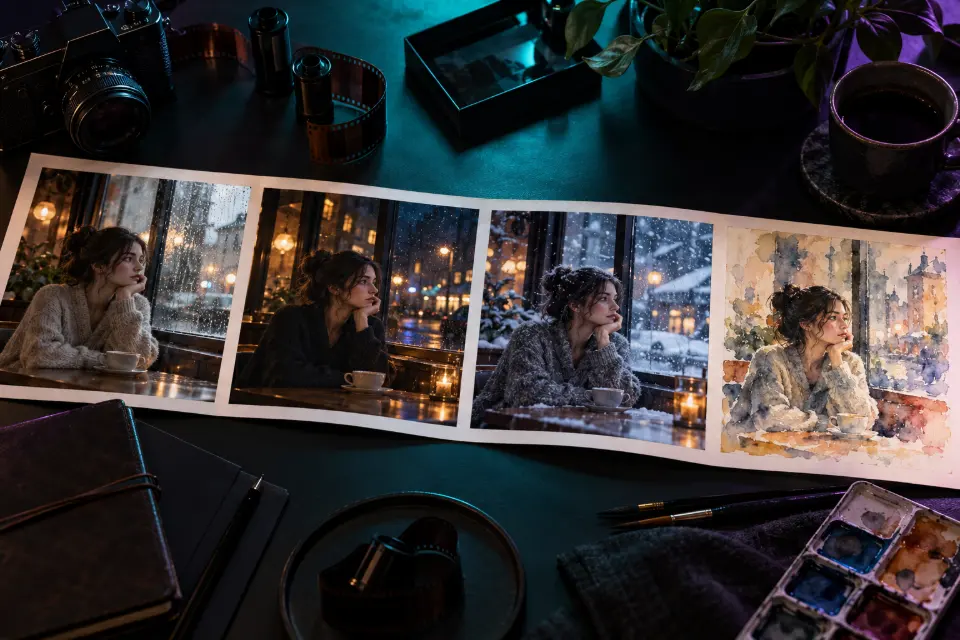
Follow-up: restyle as a watercolor animation
Keep the composition, the movements, the timing, the camera and the audio exactly as they are. Restyle the whole clip as a hand-painted watercolor animation: soft paper texture, visible brush strokes, colors bleeding gently at the edges, slightly simplified shapes.A restyle keeps the motion you already like and swaps only the look. Try “paper cut-out animation” or “1970s film stock” instead.
Follow-up: remove something from the background
Keep everything in the clip exactly as it is, except remove the [red parked car on the right] from the background. Fill the space with what would naturally be there, matching the light, shadows and any movement in the rest of the scene. The main subject must not change.Name the object as precisely as you can, with color and position. Large objects close to the subject are harder to remove cleanly.
Follow-up: slow motion at the end
Keep the first part of the clip exactly as it is. In the final two seconds, slow the action down to smooth slow motion so the last movement plays out gently, and let the audio stretch and soften with it. Do not change the people, the setting or the camera angle.Pairs well with the skater or dog clip, where the last movement is the highlight. If the whole clip slows down, repeat “only the final two seconds”.
Follow-up: replace the audio only
Keep the picture exactly as it is, frame by frame. Replace only the audio with [soft rain and a distant train passing], growing slightly louder as the camera moves closer. Remove the old background noise completely and add no music.Audio edits are low risk because nothing visible has to change. Name the space too, such as “in a small wooden room”, so the new audio fits the picture.
Gemini Omni video editing prompts for YouTube Shorts
Gemini Omni is also available in YouTube Shorts, and the step-by-step approach suits short vertical videos. Start with a 9:16 clip like the skater above, then use follow-ups to try variations: a night version, a slow-motion ending, new audio. Each version is a candidate, and you keep the one that holds attention in the first second.
Leave text out of the prompts. Titles and captions look sharper when you add them in the Shorts editor, and you can change them later without generating anything again.
Gemini Omni vs Veo 3.1: which one should you use?
Use Veo 3.1 when you can describe the whole shot up front, such as an ad with a fixed script or a planned dialogue scene. Use Gemini Omni when you want to find the shot by trying things – the light, then the weather, then the camera – without losing what already works. Both are Google models that can make sound, and the starting clips on this page run in either. The follow-up edits only make sense in Omni, because Veo starts a new clip with each prompt. In Prompt Studio you can switch between the two and the wording adapts.
When follow-up edits go wrong
After several rounds, small changes can add up. These fixes help:
- A face slowly changes: add “keep the face exactly as in the first clip” to your next instruction.
- The timing shifts: say “keep the timing and the length the same”.
- The audio disappears after an edit: describe the audio you want again in the same message.
- An edit changes too much: undo it in words by describing how that part looked before, then try a smaller change.
- The clip has drifted too far: go back to your starting prompt, add what you learned and begin a new round.
A five-step Gemini Omni edit session
| Step | What you send | What stays |
|---|---|---|
| 1 | Starting clip: café window on a rainy day | Nothing yet; this sets the scene |
| 2 | Follow-up: change day to night | Woman, outfit, café, camera move |
| 3 | Follow-up: change one piece of clothing | Face, movements, night light |
| 4 | Follow-up: add a spoken line | Picture, camera, timing |
| 5 | Follow-up: replace the audio only | Every frame of the picture |
Questions and answers
Can Gemini Omni edit videos?
Yes. Google presents Gemini Omni as a video generation and editing model, and each new instruction edits the previous clip instead of starting over. Whether you can bring in your own footage depends on the app and your plan, so check in Gemini or Flow.
Is Gemini Omni free?
Access and limits depend on your Google plan and change over time, so check the Gemini app for what yours includes. The prompts on this page are free to copy.
What is the difference between Gemini Omni Flash and Gemini Omni 1.1 Flash?
Gemini Omni Flash launched in May 2026, and Gemini Omni 1.1 Flash is the update that followed in late August 2026. The way you prompt stays the same: a starting clip, then one edit at a time.
Where can I use Gemini Omni?
In the Gemini app, in Google Flow and in YouTube Shorts.
Why did my follow-up change the whole video?
Usually because it did not say what to keep. Start every follow-up with a keep line that names the people, the setting, the camera and the timing, then ask for one change.
Can I use these Gemini Omni prompts in Veo 3.1?
The starting clips, yes. The follow-up edits need Omni, since Veo creates a new clip for each prompt; for Veo, write the change into the full starting prompt and generate again.