The short answer
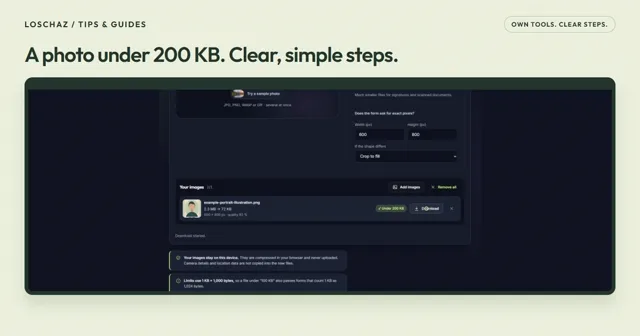
Prepare the crop before adding decoration. Use Image Studio to adjust the composition, remove a background only when it helps and export the format the destination accepts. Inspect the saved photo for accurate material, complete edges and readable details.
Open the free toolDecide what the photograph must explain
A product picture should help someone understand the object, not merely occupy a tidy square. For an illustrative handmade ceramic mug, the handle, opening and surface finish all matter. A distant scene with a beautiful table may say less about the mug than a quieter close view. Write down the visible features before editing so they do not disappear during cropping or background removal. This example is not a measured sales result or a rule imposed by a marketplace.
Separate a main presentation image from evidence of condition. A small scratch or uneven handmade edge can be important information. Do not smooth it away just because a cleaning operation makes the surface look more uniform. Image Studio changes presentation; it cannot decide which marks are acceptable to conceal. The practical standard is whether the edited picture still gives an understandable view of the item you intend to provide.
Start from a useful source
Choose the clearest original available and keep it outside the editor. Check focus on the important part, not only the background. An image with a blurred maker’s mark will not become a reliable readable mark simply by enlarging or sharpening it. If the object is still available, another photograph can be more efficient than extensive repair. Use a plain surrounding area when possible, while preserving the appearance of transparent or reflective materials.
Avoid repeated exports as intermediate working sources. Open the original with “Choose an image” and save an editable project when the arrangement is worth keeping. Each new design can then begin with the same source material. For a set of related products, create a small note describing framing and background choices so the next image follows an intentional pattern rather than a remembered guess.
Set a crop with room for the whole item
Read the destination’s current dimensions and file requirements. A square card and a wide banner require different arrangements. Use the appropriate shape under “Format, size & crop”, then adjust the centered crop. Keep the entire handle, lid or attachment when it belongs to the object. Extra empty space may be preferable to cutting off a feature that the buyer needs to evaluate.
Inspect the composition at a small preview size as well as at normal zoom. A delicate object centered in a large canvas can appear much smaller than another product exported at the same dimensions. Consistency depends on apparent subject scale, not only matching pixel counts. An illustrative series can use a common surrounding margin, with sensible exceptions for a long tool or a tall bottle. Do not force every shape into an identical crop when that hides useful information.
A square crop you can reproduce
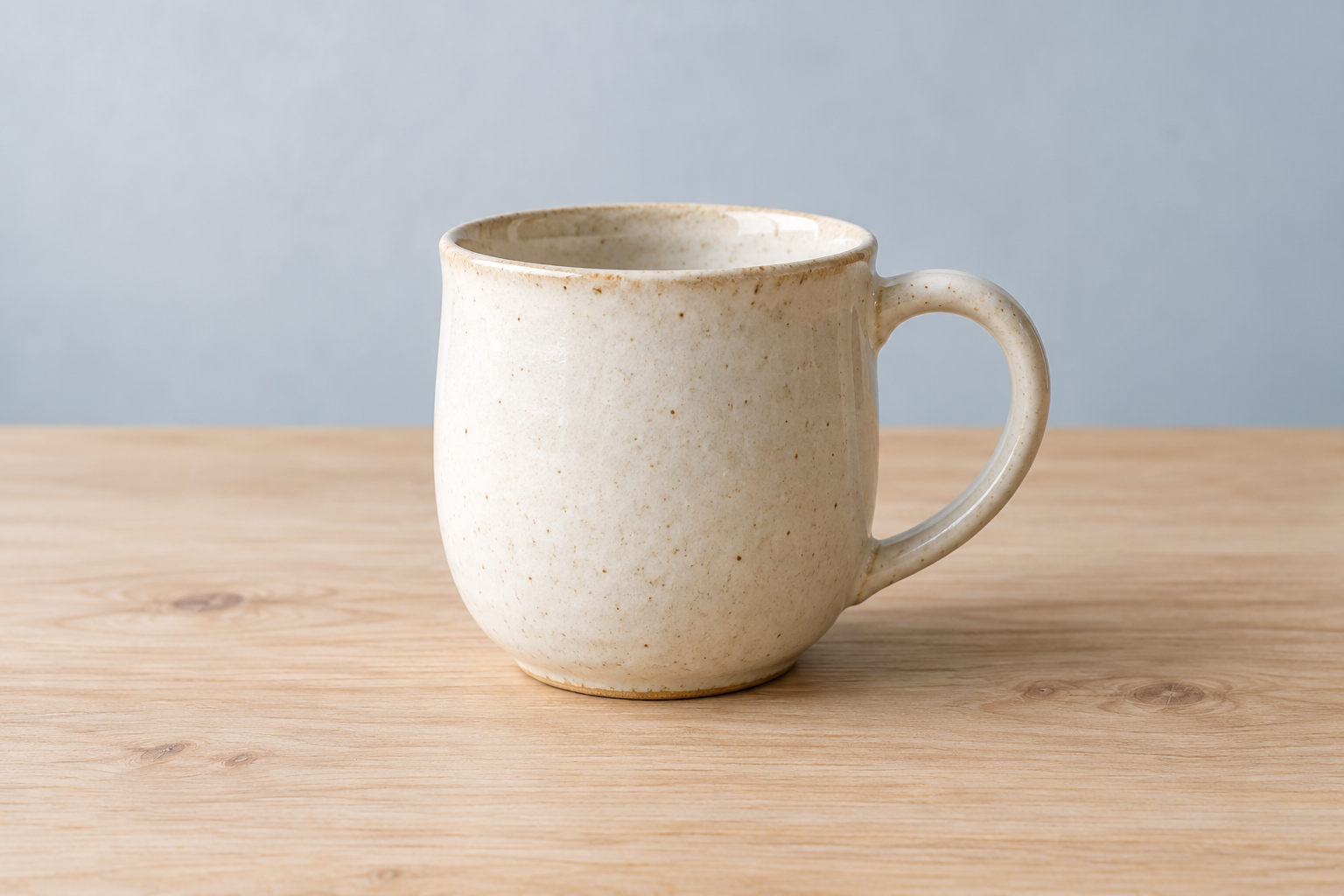
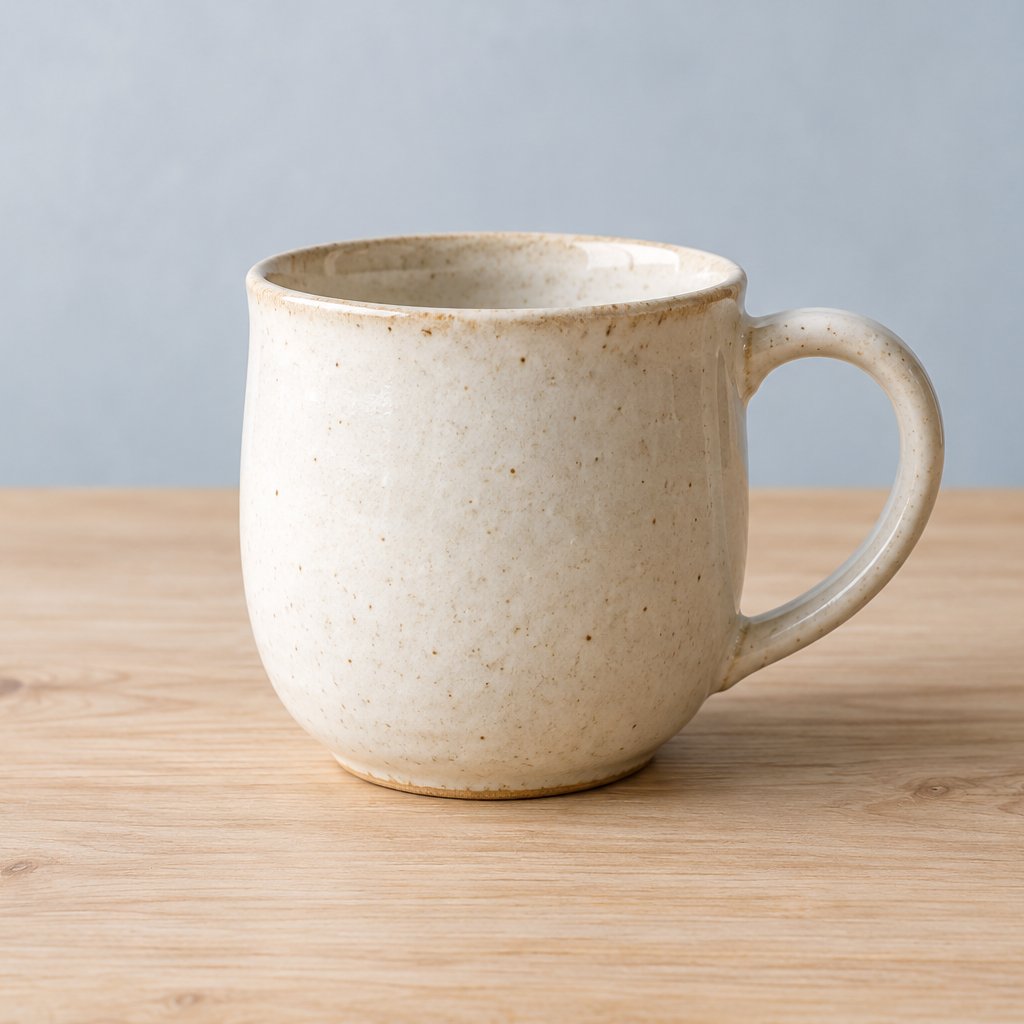
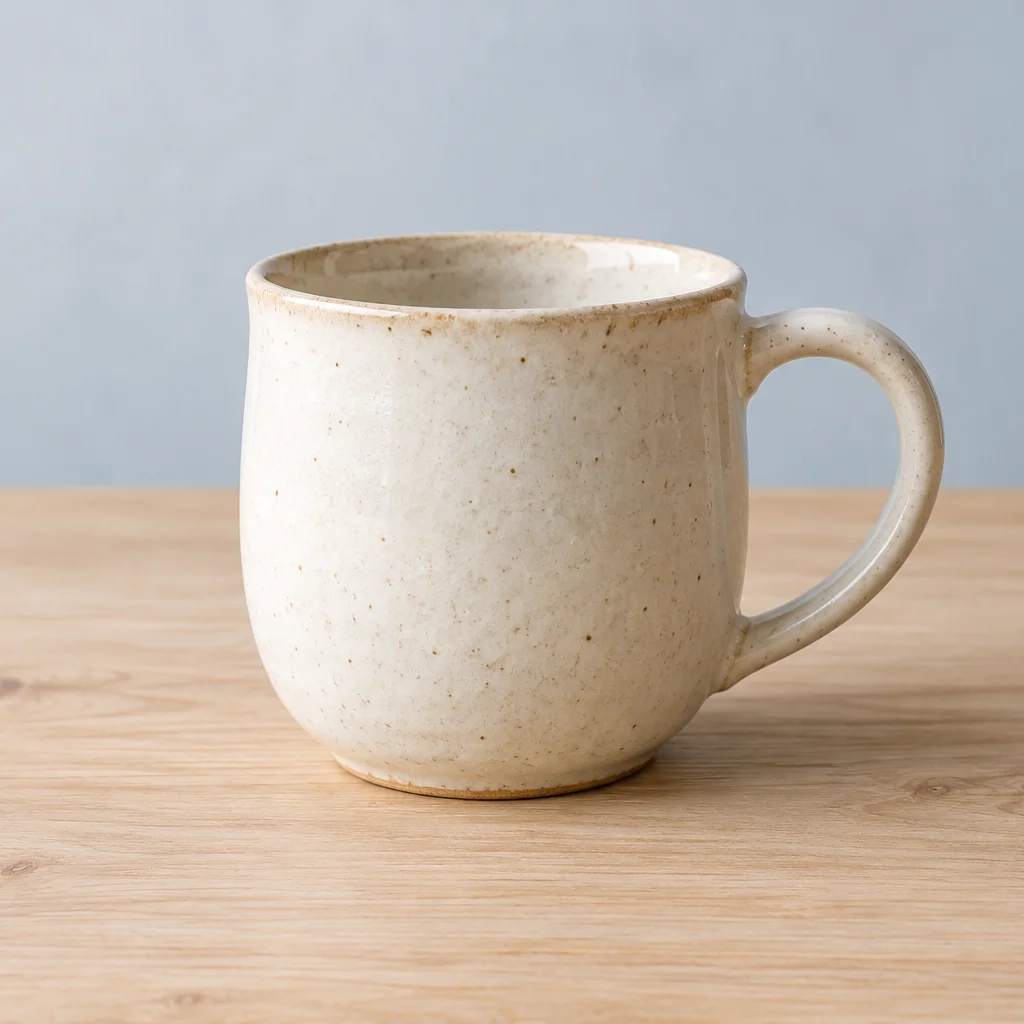
The downloadable starting image is an AI-generated ceramic mug, created for this tutorial. It is not a photograph of a real item for sale. We opened this exact PNG in Image Studio and downloaded the JPG and WebP below in desktop Chrome. Only the crop, output dimensions and file format changed; no background removal, surface retouching or text overlay was applied.
The 1536 × 1024 source includes more table and wall beside the mug than the square output needs. A centered 1024 × 1024 crop starts 256 pixels from the left and 0 from the top. The complete handle, rim and base remain inside the crop. The existing table and its shadow still explain how the object sits; a transparent background would add work without solving a problem in this example.

Load the original and choose a square
Download the source PNG below and open it in Image Studio. Under “Quick preset”, choose “Social square · 1080 × 1080”. This selects the centered square crop. Set “Width (px)” to 1024 with crop proportions locked; height becomes 1024 as well, avoiding enlargement from the 1024-pixel crop.
Check the crop coordinates
Open “Crop & JPG background”. Left is 256, Top is 0, and Crop width and Crop height are both 1024. Check the right edge of the handle before exporting. These coordinates belong to this source file; another photograph needs its own crop.
Export both formats from the same source
Choose JPG, leave the optional KB limit empty and set “Maximum quality” to 85%. Create and download the image. Then change the format to WebP and export again with the same crop and quality setting. The table records the actual files, not a promised size for other photographs.
| File | Dimensions | Bytes |
|---|---|---|
| Source PNG | 1536 × 1024 | 1,824,577 |
| Square JPG | 1024 × 1024 | 93,721 |
| Square WebP | 1024 × 1024 | 52,810 |
Remove a background only when it serves the image
Automatic removal can separate an opaque object from a busy scene. Choose the suitable subject mode and run the operation, then review the mask. Look inside handles and between separate parts, not just around the outside. Restore missing object regions and erase background islands locally. A clean silhouette can still contain an overlooked patch of the original table inside the handle.
Glass, polished metal and translucent material need particular caution. Reflections and see-through regions include information from the original scene. A cutout does not create a neutral studio capture of the same object. If the edited result misrepresents the material, keep a suitable original background or obtain another photograph. Check a cutout against the real intended background; a pale fringe hidden on white can become obvious on a darker card.
Keep added words separate from the photograph
Use text only when it adds information the image needs. A date for an event card and a permanent product label are different things. If the destination allows an overlaid size note, keep it readable and away from the feature it describes. Use separate text elements so a later correction does not require rebuilding the picture. Do not cover condition details with decoration.
An outline or shadow can improve separation from the photo, but several effects can compete with the item. Read the words at the actual display size. A huge working canvas makes small labels appear more useful than they will be in a browsing list. If the platform provides a text description beside the picture, consider putting detailed specifications there instead of trying to fit every fact into the image itself.
Choose the export for the destination
Select JPG for a photograph when the destination requests it. Use PNG or a supported transparent WebP if the picture needs genuine transparency. JPG cannot store transparent pixels, and changing an extension does not convert the data. Set an optional KB ceiling only when required and check the reported result rather than assuming the chosen value was always attainable.
Open the downloaded file before uploading. Compare shape, color impression and important small details with the source. This is an inspection of your own output, not a scientific color-accuracy test or a claim about every viewer. Keep a project for later layout changes and identify the finished export clearly. The project contains the original image and can retain metadata, so share the finished picture when a collaborator only needs to publish it.
Questions you might still have
Should every product have a transparent background?
No. Choose the presentation that preserves a truthful and understandable view of the material.
Can I fix a blurry label by changing output size?
More pixels do not verify missing lettering. Obtain a clearer source when the label matters.
Why do equally sized images look inconsistent?
The subject can occupy different proportions of the canvas. Compare apparent scale as well as pixel dimensions.
Can I remove a small scratch?
First consider whether it is relevant to the item’s condition. Do not let a presentation edit obscure information the recipient needs.
Which file should a publishing collaborator receive?
Usually the checked finished export. A project is for further editing and includes the original material.
Does the tool upload my product photos?
No. Editing takes place in the browser. Save downloads and projects deliberately before closing.
Sources & useful details
These guides are written from the current LoschaZ tools and the sources listed above. Examples are illustrations, not tests on every device or promises of an identical result.